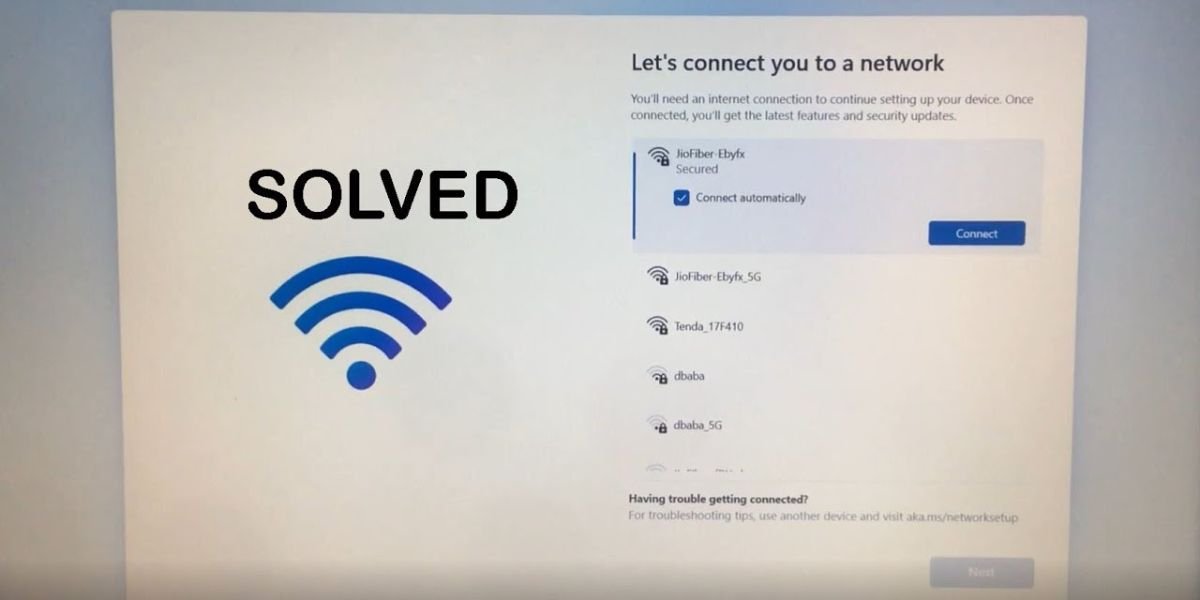
Setting up a fresh installation of Windows 11 should ideally be a straightforward process. However, Microsoft designed the initial setup environment, officially known as the Out-of-Box Experience (OOBE), to mandate an active internet connection. When you reach the screen titled Let’s connect you to a network, the Next button remains completely greyed out until an active Ethernet or Wi-Fi signal is detected. This structural requirement stops setup entirely if you lack an immediate network connection or prefer not to link a cloud account right away.
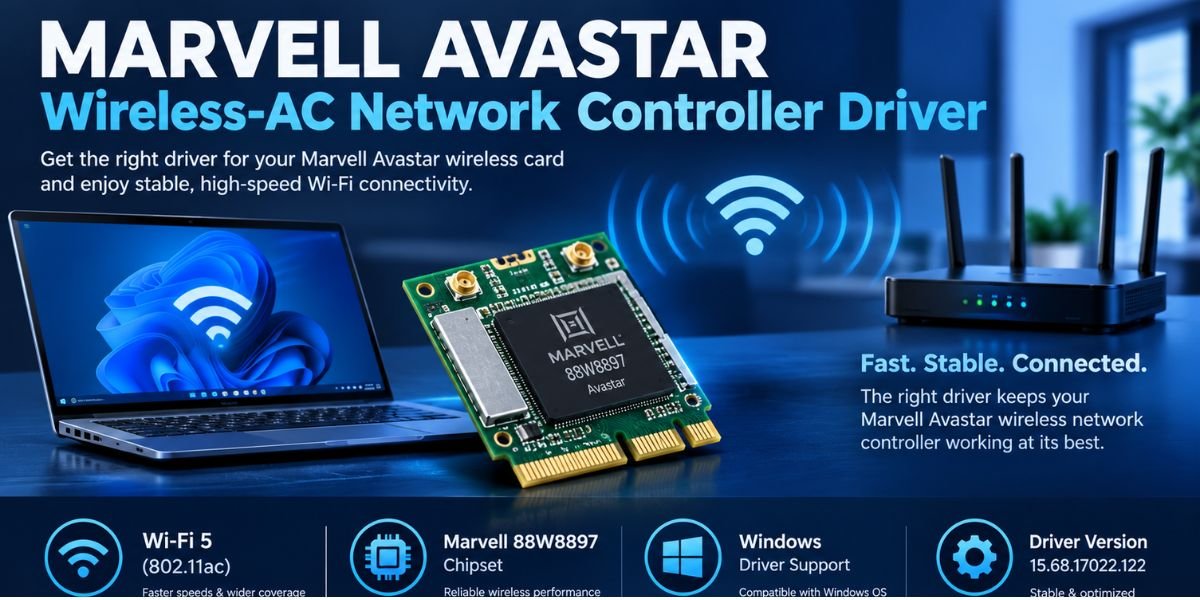
This network wall presents a major hurdle during clean installations, system builds, and IT deployments. If your motherboard relies on brand-new Wi-Fi 7 or 2.5GbE LAN hardware, native Windows media often lacks the necessary network drivers out of the box. Without a functional driver, setup cannot detect your hardware, leaving you stuck on an immovable screen. Bypassing this enforcement allows you to reach the desktop, set up a local user profile, and install missing hardware drivers manually.
Why Windows 11 Requires an Internet Connection During Setup
Microsoft enforced mandatory internet connectivity and account integration starting with Windows 11 Home and later expanded the mandate to Windows 11 Pro. The primary goal behind this architecture is to force users to sign in with a Microsoft Account (MSA). Linking setup to an online identity allows Windows to synchronize OneDrive cloud storage, enforce Device Encryption through automatic BitLocker key backups to the cloud, and activate digital license entitlements immediately.
A clear distinction exists between intentionally opting for an offline installation and being trapped by missing hardware drivers. When you install Windows on custom-built PCs or newly released laptop platforms, the default boot.wim image provided by Microsoft may not contain the specific network driver INF files for your chipset. In these scenarios, the system is physically incapable of connecting to the web, rendering the setup process unusable without a direct command-line bypass or offline driver injection.
How to Bypass the Network Screen Using Command Prompt
The most direct method to circumvent the network screen uses a built-in script execution command inside the setup command-line interface. This mechanism triggers an alternate execution path within the setup configuration files.
To execute this bypass, advance through the initial language, region, and keyboard selection screens until the Let’s connect you to a network interface ” screen appears. Unplug any connected Ethernet network cables from your device. If you are using a laptop with an active Wi-Fi connection, do not enter your network security key.
Open the command line interface by pressing Shift + F10 on your keyboard. On various laptop models, particularly those with locked function rows, press Shift + Fn + F10 instead.
Type the exact command script below into the terminal window and press Enter:
DOS
OOBE\BYPASSNRO
The system will process the command and perform an automatic reboot. Once the machine restarts, pass back through the initial region and keyboard selection screens.
Observe the network connection screen and look for a newly visible option located at the bottom-left area labeled I don’t have internet. Click I don’t have internet, then select Continue with limited setup on the subsequent confirmation panel to proceed to local account creation.
Executing this command modifies the registry key BypassNRO inside the live setup environment and forces the system to restart the OOBE stage. While testing on Windows 11 24H2 and 25H2 builds confirms this method remains functional, Microsoft periodically adjusts how setup handles this command in updated installation media. Always ensure you run the command precisely as written without adding extra spaces.
What to Do If OOBE\BYPASSNRO Doesn’t Work
If typing the standard bypass script throws an error such as is not recognized as an internal or external command, or if the system reboots without displaying the offline button, the installation media you are using has modified or restricted default setup scripts. This occurs frequently on enterprise-customized images, specific OEM deployment builds, or newer security-hardened media.
Try the Registry-Based Bypass Method
When the direct execution path fails, you can manually inject the required registry value into the system configuration store before the network check executes.
Open the command line interface on the network screen by pressing Shift + F10 or Shift + Fn + F10.
Execute the following command to add the BypassNRO registry DWORD directly into the Windows installation registry store:
DOS
reg add “HKLM\SOFTWARE\Microsoft\Windows\CurrentVersion\OOBE” /v BypassNRO /t REG_DWORD /d 1 /f
Once the command completes with the success message, restart the setup stage by issuing a shutdown command directly in the terminal:
DOS
shutdown /r /t 0
Allow the machine to reboot, navigate through the regional selections, and verify whether the offline setup options appear on the network page.
Manually writing this registry key sets the configuration value BypassNRO to 1 inside the system hive. This parameter explicitly instructs the setup engine to render the offline bypass controls during network evaluation.
How to Finish Windows 11 Setup Without an Internet Connection
Successfully triggering the bypass allows you to proceed through the offline creation path. Once you click I don’t have internet followed by Continue with limited setup, Windows redirects to the offline identity creation wizard.
Specify your preferred account handle on the Who’s going to use this PC? screen to establish a local user account.
Assign a secure password or leave the field completely blank if you prefer an unauthenticated direct boot experience. If you enter a password, the system requires you to choose and answer three security questions.
Review the telemetry and location settings on the Choose privacy settings for your device screen. Toggle features such as Diagnostic Data, Location Tracking, and Inking & Typing personalization according to your preferences.
Complete the wizard. Windows will finalize the desktop profile environment without communicating with remote cloud servers.
Creating a local account isolates your user credential database entirely to the local machine disk. This offline profile operates completely independent of cloud identity services, keeping account data on your hardware. You retain full freedom to sign into specific Microsoft services, such as the Store or Xbox App, individually after reaching the desktop.
Use Rufus If You Are Preparing a Windows 11 Installation USB
If you are creating installation media on another computer prior to performing a clean installation, using Rufus provides a reliable way to pre-configure your setup environment. Rufus is an open-source utility that modifies the installation files directly on the USB flash drive, stripping away setup requirements before you even boot the target machine.
Download the official Windows 11 ISO file directly from Microsoft’s distribution server. Next, download and run the latest release of Rufus.
Insert a flash drive with at least 8GB of storage capacity into your system and select it within the drive menu inside Rufus. Select the downloaded ISO image file and click the START button located at the bottom of the interface.
A custom menu titled Windows User Experience will automatically pop up. Check the option to remove the requirement for an online Microsoft account.
Modifying the media with Rufus inserts an answer file (autounattend.xml) directly into the root directory of the boot drive. This file automatically passes configuration flags to the installer during bootup. When you boot the target computer using this modified drive, the setup wizard completely skips the network connectivity enforcement screen and proceeds straight to local user creation.
Windows 11 Setup Cannot Detect Wi-Fi or Ethernet
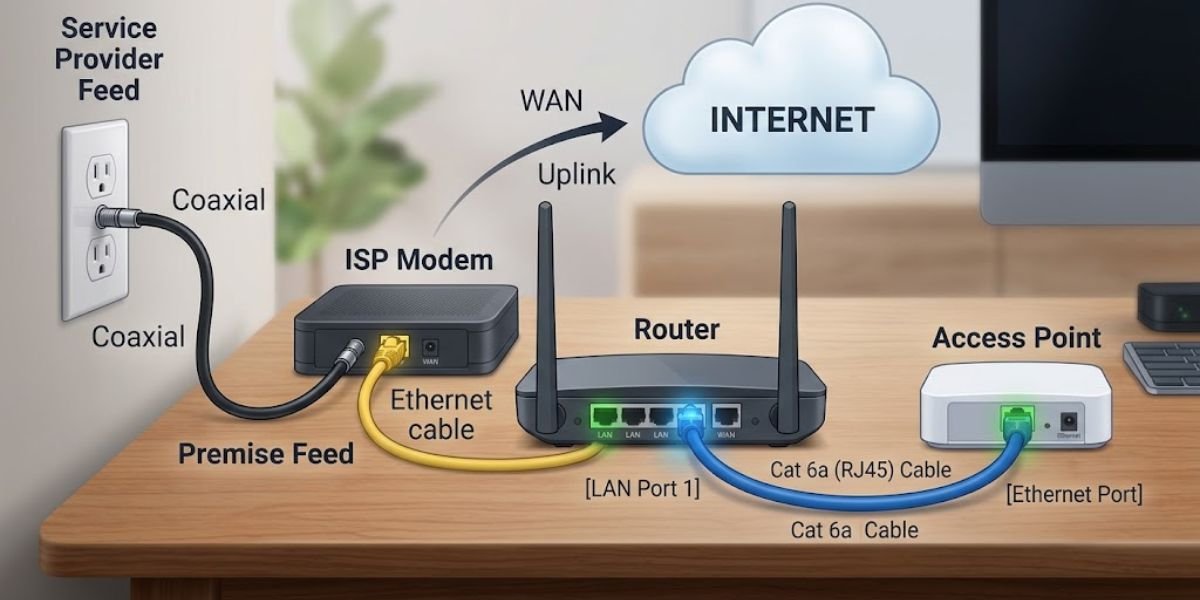
When the installation wizard fails to show any available wireless networks and ignoring Ethernet leaves the network list entirely blank, the core issue is almost always missing network interface controller drivers. Modern platform chipsets from hardware vendors like Intel, Realtek, and MediaTek require specific driver packages that may not be included in default Windows installation media images.
Steps to Resolve Missing Network Drivers During Setup
Access the official manufacturer support portal for your motherboard or laptop using an alternative functional computer and download the dedicated LAN or WLAN driver package specified for your hardware model. Extract the downloaded file payload using tools like 7-Zip to reveal the raw driver files, specifically searching for .inf and .sys file extensions. Save these extracted file folders directly onto a secondary USB flash drive and insert that drive into the installation target system.
Open the terminal window on the network setup screen using Shift + F10. Load the extracted driver directly into the running Windows pre-installation environment using the Plug and Play Utility tool:
DOS
pnputil /add-driver D:\*.inf /subdirs /install
(Note: Replace D: with the actual drive letter assigned to your USB flash drive inside the setup environment).
Executing pnputil forces the live setup engine to stage and initialize the network hardware driver dynamically. Within seconds of running this command, the setup screen updates to display available Wi-Fi access points and active Ethernet link statuses.
Frequently Asked Questions
Can You Set Up Windows 11 Without an Internet Connection?
Yes, you can set up Windows 11 completely offline by using built-in command prompt bypasses, custom installation media modified via Rufus, or by injecting network drivers manually. While default consumer installations enforce network connectivity, these alternate setup pathways bypass the online check completely.
Does Bypassing the Network Screen Create a Local Account?
Bypassing the network screen enables the offline installation mode, which then allows you to create a local user account. The command bypasses the mandatory network connection step, which indirectly removes the requirement to sign in with an online Microsoft Account.
Why Is the I Don’t Have Internet Option Missing?
The I don’t have internet option is intentionally hidden by Microsoft in modern Windows 11 installation media. The setup process hides this button by default unless specific registry flags are set or a setup bypass script like OOBE\BYPASSNRO is executed.
Can You Connect to Wi-Fi After Installing Windows 11 Offline?
Yes, you can connect to Wi-Fi at any point after reaching the desktop. Once you finish setting up your local account and land on the desktop, you can connect to wireless networks, plug in an Ethernet cable, or install updated hardware drivers without losing your local user profile.