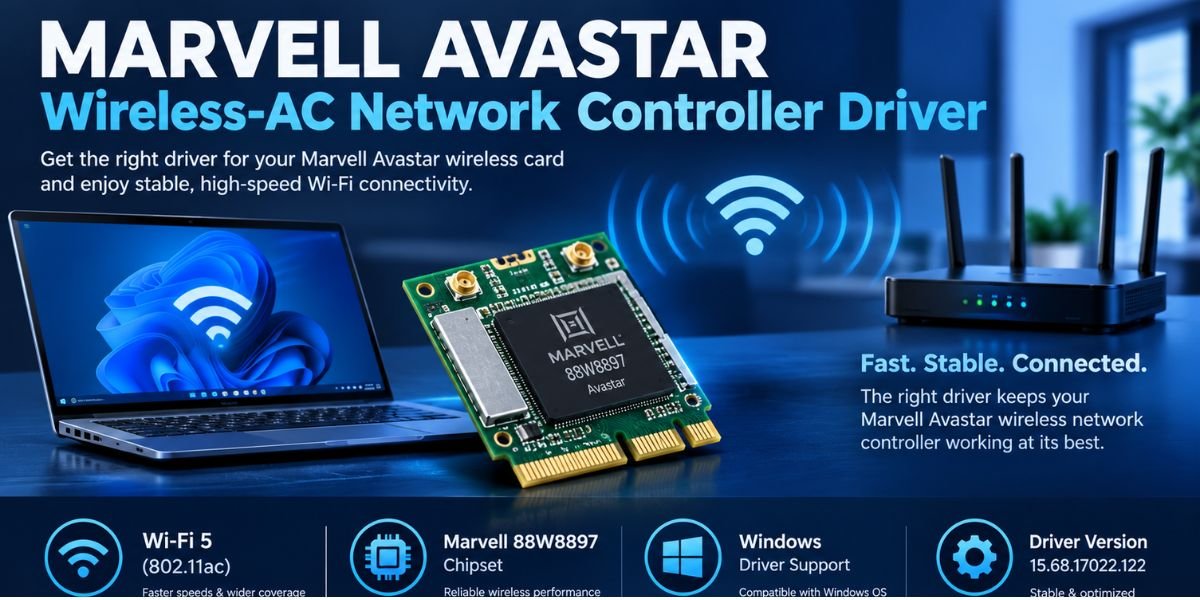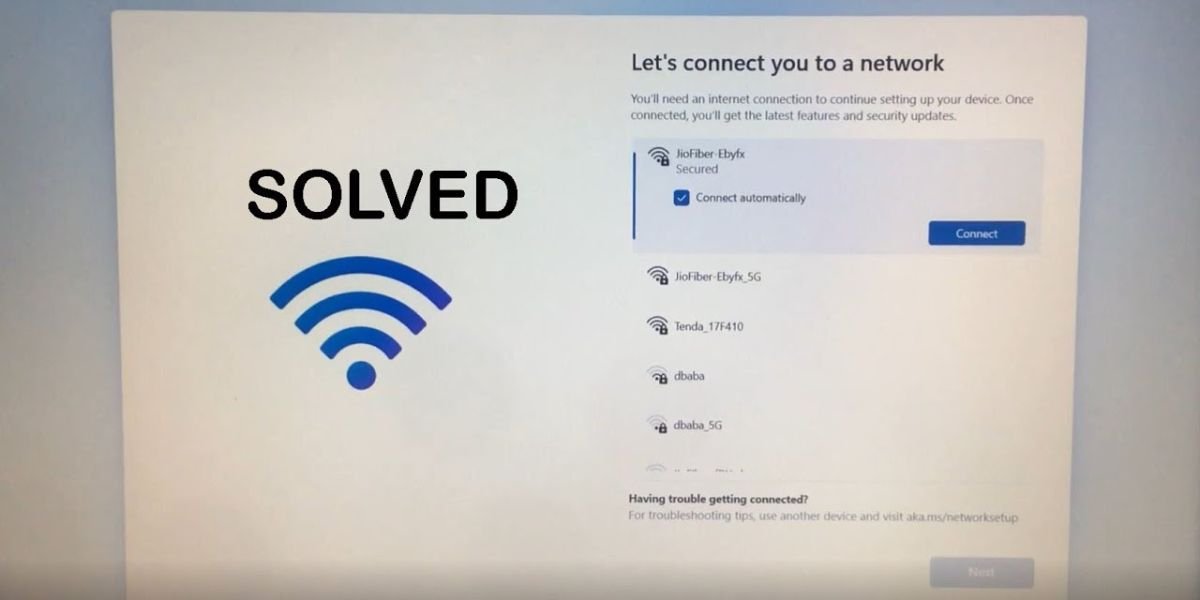
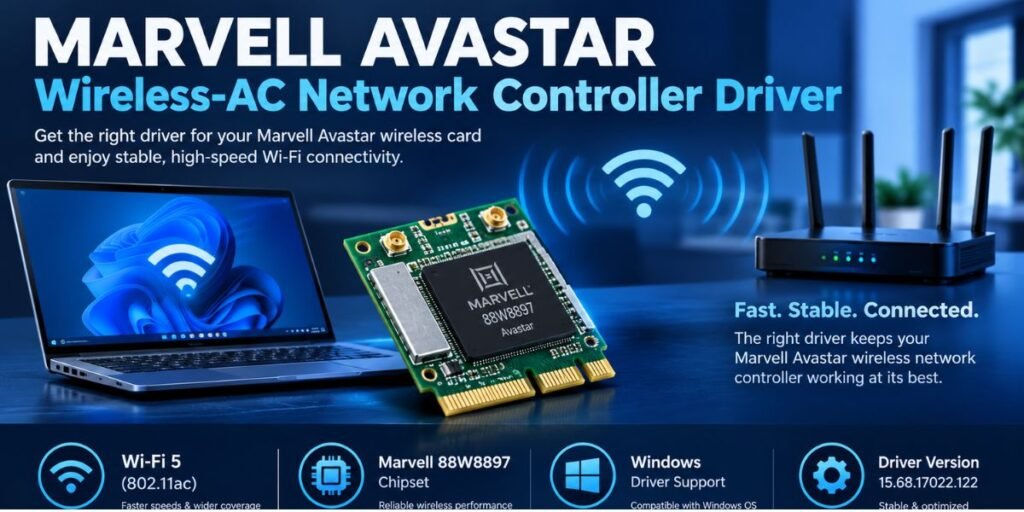
The Marvell AVASTAR Wireless-AC Network Controller is an integrated Wi-Fi and Bluetooth chipset embedded in several generations of hardware, including Microsoft Surface Pro 3, Surface Pro 4, Surface Book, and Surface Laptop models, as well as select third-party laptops and desktop motherboards. The driver acts as the essential software bridge between the Windows operating system and the network hardware, translating system commands into radio frequency operations on 2.4 GHz and 5 GHz bands.
When this driver becomes corrupt, outdated, or misconfigured during a major Windows feature update, the computer loses wireless capabilities entirely or suffers from severe latency spikes, limited connectivity warnings, and unexpected drops. Downloading the correct driver package, updating it properly, or executing a clean reinstallation restores network stability. The safest and most reliable sources for acquiring this software are Windows Update, official original equipment manufacturer (OEM) support portals, and the official Microsoft Update Catalog.
Marvell AVASTAR Wireless-AC Network Controller Driver Download
Obtaining the correct driver file requires choosing official channels to prevent installing modified executable binaries or mismatched inf files that cause system instability. The primary repository for standalone Marvell driver packages is the Microsoft Update Catalog.
Searching the catalog for Marvell AVASTAR Wireless-AC Network Controller yields multiple cab files containing driver binaries and configuration files. To select the correct file, match your target system details before downloading:
- Check the Architecture column to confirm whether the driver is built for x86, x64, or ARM64 processors.
- Review the Supported OS field to verify compatibility with your installed build of Windows.
- Inspect the Hardware ID embedded in the update details, which typically matches string identifiers like PCI\VEN_11AB&DEV_2A09 or DEV_2B4B.
For Microsoft Surface owners, downloading standalone Marvell drivers from generic repositories is rarely necessary and often counterproductive. Microsoft bundles validated Marvell AVASTAR drivers into unified installer packages. Users operating a Surface device should navigate directly to the official Microsoft Surface Drivers and Firmware Download Hub to retrieve the corresponding .msi package for their exact model rather than extracting loose .cab files.
Automated driver update software and third-party download aggregators frequently label generic or higher-numbered build files as the latest update. Installing an unverified driver simply because it carries a newer release date can introduce registry mismatches or disable Bluetooth functionality on combined wireless chips. Always prioritize OEM-validated releases over unverified third-party hosts.
Marvell AVASTAR Driver Versions and Windows Compatibility
Over the lifecycle of Windows 10 and Windows 11, Microsoft and Marvell released specific driver revisions to address sleep state wake failures, WPA2/WPA3 security handshakes, and throughput throttling. One of the most widely deployed stable builds in the official update catalog is version 15.68.17022.122, released with a digital signature date of September 9, 2021.
To verify which version is currently active on your computer, open Device Manager by pressing Windows Key + X and selecting it from the menu. Expand the Network adapters category, right-click Marvell AVASTAR Wireless-AC Network Controller, select Properties, and open the Driver tab. The interface displays the driver provider, release date, and exact version number.
Compatibility across operating system builds requires attention to underlying architecture:
- Windows 10 (64-bit): Native support is broad across builds 19041 through 19045, utilizing the 15.68.x.x driver series.
- Windows 11: Systems upgraded to Windows 11 retain functionality using legacy 15.68 series drivers, but specific hardware IDs on older Surface devices might require operating under specific cumulative updates to avoid driver initialization failures (Code 10). If the latest release causes performance regressions or drops, rolling back to version 15.68.17021.121 often resolves hardware instability.
- ARM64 Devices: Selecting early Surface devices using ARM architecture requires specialized ARM64 driver builds compiled specifically for that instruction set.
Selecting a driver based purely on the highest version number can cause issues. A driver version ending in a higher number may have been compiled for a specific enterprise hardware revision, lacking the power-state tuning necessary for consumer tablet form factors.
How to Update the Marvell AVASTAR Wireless-AC Network Controller Driver
Updating the driver through native Windows tools ensures that digital signatures are verified and system restore points remain uncorrupted.
To update through Device Manager and Windows Update:
- Press Windows Key + X and select Device Manager.
- Expand the Network adapters section to view installed network hardware.
- Right-click Marvell AVASTAR Wireless-AC Network Controller and select Update driver.
- Choose Search automatically for drivers to allow Windows to check local system stores and connected update channels.
If Windows reports that the best driver is already installed, open Settings, navigate to Update & Security (or Windows Update on Windows 11), and click Check for updates. Select Advanced options, open Optional updates, and expand the Driver updates section. If an updated Marvell driver payload is staged by the OEM, it will appear in this list for manual selection.
After completing the installation, restart the system. Open the Wi-Fi flyout panel from the taskbar to confirm that wireless networks populate and authentication handshakes complete successfully.
How to Download and Install the Driver Manually
When automated update utilities fail to locate a working package, manual installation using official files derived from the Microsoft Update Catalog or manufacturer firmware archives provides a direct resolution path.
To install a .cab file retrieved from the catalog:
- Download the appropriate .cab archive matching your system architecture.
- Create a new folder on your desktop named MarvellDriver.
- Extract the contents of the .cab file into the MarvellDriver folder using built-in Windows archiving or tools like 7-Zip.
- Open Device Manager, right-click Marvell AVASTAR Wireless-AC Network Controller, and select Update driver.
- Choose Browse my computer for drivers.
- Click Browse, select the MarvellDriver folder containing the extracted .inf, .sys, and .cat files, ensure Include subfolders is checked, and click Next.
- Windows will read the setup information file, install the signed driver binaries, and prompt for a system reboot.
For Microsoft Surface devices, running the official .msi package automates driver placement, updates system firmware, and overwrites corrupted registry keys simultaneously. Avoid running executable files obtained from third-party driver utility sites, as these often bundle unwanted software or install incorrect inf files that can break low-power sleep states.
How to Fix Marvell AVASTAR Wireless-AC Network Controller Problems
Hardware and software conflicts involving the Marvell AVASTAR controller often present as specific error codes or state failures. The following steps address common failure modes using proven troubleshooting paths.
The Marvell AVASTAR Adapter Is Missing from Device Manager
If the controller does not appear under Network Adapters, it may have dropped off the PCIe bus or entered a deep power state failure.
- Open Device Manager, click View on the top menu bar, and select Show hidden devices.
- Look for the adapter under Network Adapters with a faded icon. If present, right-click and select Enable device.
- Perform a full hardware shutdown. On Surface devices, press and hold the Power button and Volume Up button simultaneously for 15 seconds until the screen turns off, clearing temporary hardware state registers.
Wi-Fi Stopped Working After a Driver Update
If network instability occurred immediately following an update, revert to the previously working binary.
- Open Device Manager, right-click the Marvell adapter, and select Properties.
- Navigate to the Driver tab and click Roll Back Driver.
- Select a reason for rolling back and click Yes. Restart the machine once complete.
Windows Cannot Find a Suitable Driver or Installation Fails
Installation failures often indicate lingering file corruption in the Windows driver store.
- Open Device Manager, right-click the Marvell adapter, and select Uninstall device.
- Check the box marked Delete the driver software for this device and click Uninstall.
- Reboot the computer. Windows will perform a hardware rescan and reinstall a clean baseline driver from the local system image.
The Adapter Appears but Cannot Connect to Wi-Fi
When the hardware initializes but fails to acquire an IP address or connect to access points:
- Verify that Airplane mode is toggled off in the Windows Action Center.
- Open Settings > Network & internet > Advanced network settings and run Network reset.
- Open Command Prompt as Administrator and execute the following commands in sequence to clear cached stack data:
DOS
netsh winsock reset
netsh int ip reset
ipconfig /release
ipconfig /renew
ipconfig /flushdns
Wi-Fi Keeps Disconnecting Frequently
Intermittent drops during high bandwidth transfers or system sleep wake cycles are frequently tied to aggressive power management configurations.
- Open Device Manager, right-click the Marvell controller, and open Properties.
- Go to the Power Management tab.
- Uncheck Allow the computer to turn off this device to save power.
- Click OK and test connection stability under heavy network load.
Refer to official Microsoft Surface Wi-Fi Troubleshooting guidance if hardware errors such as Code 10 (This device cannot start) or Code 43 persist after executing a clean driver reinstallation.
Frequently Asked Questions
Where can I download the Marvell AVASTAR Wireless-AC Network Controller driver?
Official drivers can be acquired through Windows Update, the Microsoft Update Catalog, or the official Microsoft Surface Drivers and Firmware Download Hub for Surface hardware. Avoid using third-party driver updater utilities.
Which Marvell AVASTAR driver version should I install?
There is no single version appropriate for every system. Stable releases in the 15.68.x.x series (such as 15.68.17022.122 or 15.68.17021.121) work well for most Windows 10 and 11 x64 systems. Always check your hardware ID and device manufacturer recommendations before manually overriding an installed version.
Does the Marvell AVASTAR Wireless-AC Network Controller work with Windows 11?
Yes. The controller functions under Windows 11 using compatible 15.68 series drivers provided via Windows Update or extracted from official Surface firmware packages.
Can I reinstall the driver without an active internet connection?
Yes. Download the .msi firmware package or the .cab driver package from another internet-connected computer via the Microsoft Update Catalog. Transfer the file to the target machine using a USB flash drive and execute the installation locally.
What should I do if the Marvell AVASTAR adapter disappears completely?
Perform a hard shutdown to reset the motherboard power state, check for hidden devices in Device Manager, or run the built-in Windows Network Troubleshooter to force a hardware rescan.