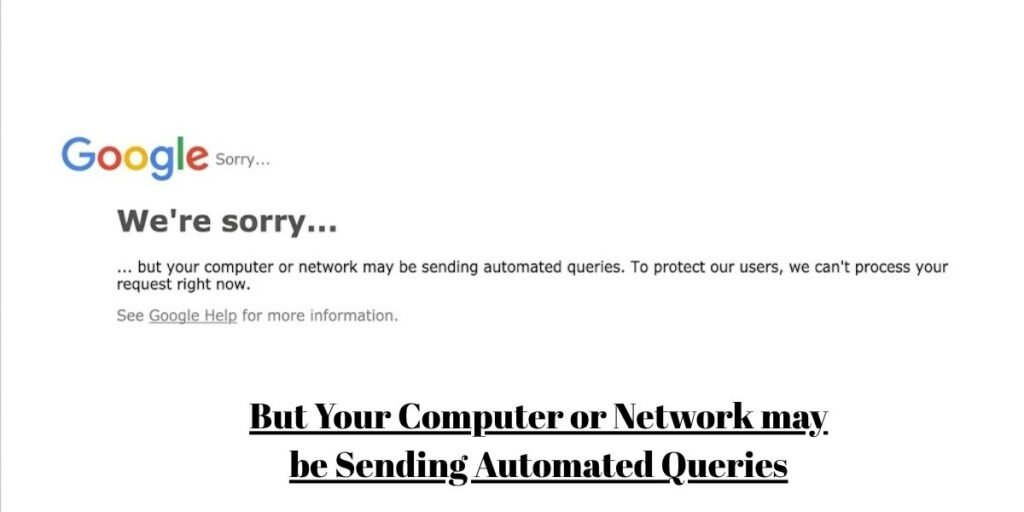
Google runs one of the most aggressive traffic-filtering systems on the web, and its entire job is to keep automated scripts from draining the search index. So when the notice appears telling you that your computer or network may be sending automated queries, your searching stops cold. The full message usually reads Our systems have detected unusual traffic from your computer network, and it loads on a dedicated page at google.com/sorry/index that also displays your public IP address and the exact time the block was recorded. That page is an automated shield tripped by traffic volume or connection metadata. It is not proof that anything on your machine has been hacked.
Understanding the trigger is what actually saves time. Most people cycle through router restarts and repeated searches without ever spotting the network signal that set off the flag. Once you look at how your device is talking to Google’s servers instead of whether your device is broken, the fix usually takes minutes and rarely needs a full system rebuild.
What Google Is Detecting When This Message Appears
Google evaluates the volume, speed, and structural fingerprint of every batch of search requests hitting its servers. A real person searching produces messy, human signals: uneven typing speed, mouse movement, pauses between queries, and browser headers that look like a normal Chrome or Safari session. When requests arrive faster than a human could physically produce them, or when they carry the fingerprint of a script, the filter classifies the source as automated.
Much of this scoring happens invisibly through reCAPTCHA v3, which watches behavior in the background and assigns a risk score from 0.0 to 1.0, where lower scores read as more bot-like. You never see a puzzle until your score drops far enough to warrant a challenge. Automation tools make that easy to trigger. A default Selenium or Puppeteer session, for example, exposes the navigator.webdriver property as true and often leaks a HeadlessChrome user-agent string, both of which are dead giveaways to Google’s detection layer.
Ordinary users set off the same shield without meaning to. Opening two dozen tabs at once, hammering keyboard shortcuts, or running a link-preview extension that quietly fetches every destination all mimic a scraper. The system reacts to the data pattern, not to who you are.
It helps to separate two things that get confused constantly. Suspicious traffic simply means your IP address or browser environment is sending packets that resemble a known scraping script. Malware is different. That is malicious software actively using your machine to fire off queries or flood networks without your knowledge. One is a reputation problem. The other is an infection.
Permanent bans are rare here. Google almost always responds with a temporary rate limit or a reCAPTCHA challenge rather than a hard block. Once the burst of traffic settles or you solve the puzzle, normal access returns.
Identify Which Situation Matches Your Device or Network
Pinning down where the error happens is the fastest way to avoid wasted troubleshooting. Match your setup to one of the situations below before you touch a single setting.
Before making any system changes, check your current connection environment:
- Using a home internet connection
On a private home network, the usual culprits are a burst of rapid searches, a dynamic IP address that got flagged, or one overactive browser extension running in the background. - Connected through a VPN or proxy
A VPN funnels hundreds or thousands of separate users through one shared outbound IP address. If a single person on that server scrapes Google, the whole IP gets flagged, and everyone routed through it inherits the block. Google’s own help documentation calls this out directly, noting that some VPN and tunnel services get blocked wholesale because the traffic becomes impossible to sort into abusive and non-abusive. - Using office, school, or university Wi-Fi
Large shared networks push all their traffic through a handful of gateway routers. The combined search volume from hundreds of students or staff can cross Google’s rate limit even when every individual is behaving normally. - Running SEO, scraping, or automation software
Rank trackers, keyword tools, and custom scripts built on libraries like Requests or Selenium will draw an instant block if they skip request delays and IP rotation. - Seeing the error only in one browser
If Chrome throws the block while Firefox works fine on the same machine, the problem lives inside that browser: an extension, corrupted cookies, or a modified user-agent string rather than a network-wide flag.
The Most Common Reasons Google Flags Automated Queries
Too Many Searches from the Same IP Address
Google counts requests per IP address inside tight time windows. Fire off dozens of queries in a few seconds and the filter assumes a script is harvesting search results pages. Power users who chain searches quickly hit this more often than they expect.
VPN Servers with Poor IP Reputations
Cheap and free VPN services recycle a small pool of public IPs. Botnets love those low-cost nodes, which leaves the addresses permanently marked as suspicious in Google’s reputation systems. You inherit that bad history the moment you connect.
Browser Extensions Generating Background Requests
Price trackers, coupon finders, some ad blockers, and SEO helper add-ons make constant background calls to remote servers. Google tallies those hidden requests against your network total, and you never see them happening.
Malware or Unwanted Software
Infected machines often get conscripted into botnets built for ad fraud or distributed denial of service attacks. The malicious software fires search queries continuously in the background, completely hidden from the person who owns the device.
Shared Networks with Hundreds of Users
In an office or a public venue, every device usually shares one public IP address. Concurrent searches stack up fast and cross the server threshold, which is why an entire network can suddenly face reCAPTCHA challenges at the same moment.
Automated Search Tools and Bots
Desktop SEO audit tools that run without request throttling or proper API access trigger blocks almost immediately. Unrestricted multithreading blows past normal usage limits in seconds.
Search Activity That Resembles Automated Behavior
Chaining advanced operators like filetype:, site:, and inurl: in rapid succession looks exactly like an automated vulnerability scanner sweeping the index. Google applies heavier scrutiny to complex query strings fired back to back.
Fix the Problem Based on the Cause
Work through these steps in order and stop as soon as your access returns.
Step 1: Complete the CAPTCHA Challenge
When a reCAPTCHA appears, solve it right away. Google’s block page uses reCAPTCHA, not any third-party widget, and passing it verifies you as human and clears the current session. If the challenge keeps returning even after you solve it, the trigger is still active on your network, and the later steps will address the real source.
Step 2: Clear Browser Cache and Cookies
Stale session tokens or corrupted site data can lock your browser into a repeating error.
To reset your browser state:
- Open your browser settings menu.
- Select the option to clear browsing data.
- Choose Cookies and other site data along with Cached images and files.
- Set the time range to All time and confirm the clearing process.
Firefox users have hit a specific version of this loop where Google’s cookie for the search domain gets stuck, so clearing that specific domain’s data often resolves it on its own.
Step 3: Disable the VPN or Switch Server Locations
Disconnect your VPN entirely and test a plain search. If the block lifts, your exit IP had a bad reputation. Reconnect through a different geographic server, or move to a provider that offers a dedicated IP so you are not sharing an address with strangers who may be scraping.
Step 4: Restart Your Router
Power cycling your router clears local caches and can prompt your provider to hand you a fresh IP.
To cycle your home network equipment properly:
- Unplug both the router and the modem from their power source.
- Wait at least 60 seconds so the internal capacitors fully discharge.
- Reconnect the power cords and wait until every status light returns to solid green or blue before testing again.
Step 5: Disable Suspicious Browser Extensions
Track down the background traffic leak by switching off every extension, paying special attention to free ad blockers, proxy switchers, and any scraping add-ons. Then test Google in an Incognito or Private window, which loads with extensions disabled by default and tells you quickly whether one of them is the cause.
Step 6: Scan the System for Malware
Run a deep scan with Microsoft Defender or a dedicated tool such as Malwarebytes, and remove anything it flags, including PUPs (Potentially Unwanted Programs) and background adware. If the warning only ever shows on one machine on your network, that device is the first suspect.
Step 7: Temporarily Halt Automation Scripts
If you write code or run SEO software, stop every active script. Route programmatic requests through an official API instead of scraping the HTML, and if you must automate a browser, add generous sleep delays in the range of 5 to 15 seconds between requests.
Step 8: Wait Out the Rate-Limit Window
If nothing clears the block after your network resets, Google has placed an enforcement timer on the IP. These temporary limits usually lift on their own within a few hours once the high-density traffic fully stops, sometimes stretching toward a full 24 hours for repeated or severe bursts.
Why the Error Sometimes Appears Even When You Have Done Nothing Wrong
False positives are baked into how the modern internet is wired. The world ran out of unique IPv4 addresses years ago, and there are only about 4.3 billion of them for a planet with far more connected devices. To stretch that supply, many providers use Carrier-Grade NAT (CGNAT), which parks thousands of separate households behind a single public IP at the provider’s hub. If one neighbor on that shared node runs a scraping bot, every home routed through it can see the unusual traffic warning at once, with no way to tell whose activity caused it.
Dynamic IP assignment creates the same trap from a different angle. When your router requests a fresh address, your provider may hand you one that a spammer or bot operator was using minutes earlier. The bad reputation transfers to you instantly, before you have run a single search.
Public Wi-Fi at airports, cafes, and hotels sits in the highest-risk category of all. The mix of heavy user counts, wildly varied devices, and nonstop connection requests makes those hotspots a constant target for Google’s automated protections, so the challenge often appears the moment you connect.
When the Problem Points to Malware Instead of Network Activity
Most blocks come down to network configuration or heavy search habits. A few signs, though, point squarely at a hidden infection on the device itself.
Watch for these specific system indicators:
- Search queries running on your screen that you never typed or authorized.
- Your browser automatically redirects standard searches to unfamiliar, ad-choked search engines you did not choose.
- New toolbars or browser extensions that installed themselves without your explicit permission.
- Network activity lights blinking rapidly continuously even when every application and streaming service is closed.
- Your built-in security center or antivirus software keeps switching itself off and refuses to stay on.
If two or more of those symptoms show up alongside the automated queries error, treat it as a real infection. Disconnect that device from your network and run an offline malware scan before you do anything else, since some botnet software actively resists removal while it maintains an internet connection.
If You Are Using Google Scholar, APIs, or Automation Tools
Researchers, developers, and data analysts run into this error far more than casual searchers do. Google Scholar enforces much tighter request limits than standard search to protect academic databases from bulk harvesting, so it triggers warnings at a fraction of the query volume that regular Google tolerates.
If you rely on frameworks like Selenium, Puppeteer, or Playwright, or fire raw requests through Python, unthrottled traffic aimed straight at Google endpoints leads to fast IP blocks. Default headless setups broadcast the navigator.webdriver flag and leak automation signatures that Google’s filters read immediately, which is why even a single naive request can surface the Sorry page.
There is also an important infrastructure change developers need to know. Google’s Custom Search JSON API, long the recommended way to pull search results programmatically, closed to new customers in 2025. Existing users can keep going until January 1, 2027, at the old terms: 100 free queries per day, then 5 dollars per 1,000 queries up to a hard cap of 10,000 per day. Google now points new projects toward Vertex AI Search for site-restricted use, and the older Site Restricted JSON API was already shut off in early 2025.
To research and automate without tripping the block, a few key habits do most of the work:
- Prefer a sanctioned API path over scraping raw HTML, whether that means an existing Custom Search key or Google’s newer Vertex AI Search.
- Add randomized delays between requests so the timing mimics human behavior.
- Rotate clean residential proxy IPs rather than cheap datacenter ranges, which Google already distrusts.
- Configure realistic browser headers, viewport sizes, and navigator values so an automated session does not announce itself.
Note that Google’s terms permit its provided APIs and explicitly prohibit automated scraping of the results pages, so the sanctioned route is also the compliant one.
How to Reduce the Chances of Seeing This Message Again
Staying out of the filter comes down to clean browsing habits and responsible network use.
Maintain stable search access by implementing these practices:
- Avoid free proxies and bargain VPNs, since those shared IP pools carry the heaviest load of flagged traffic.
- Keep your browser updated to the current stable build so it speaks the latest security protocols.
- Audit your extensions monthly and pull anything unverified, suspicious, or abandoned.
- Set request limits inside any SEO tool so a desktop app cannot flood your connection.
- Run real-time security scanning on every computer that shares your home router, because one infected device can flag the whole household.
Frequently Asked Questions
Can this error mean my computer has a virus?
It can, but it usually does not. Background malware can generate automated queries as part of a botnet, so it is worth ruling out. In practice, though, the warning far more often comes from VPN use, a shared IP address, or an aggressive browser extension. Google’s own guidance treats malware as one possibility among several, not the default explanation.
How long does Google’s automated queries warning last?
Temporary rate limits commonly clear within a few hours once the burst of traffic fully stops. Heavier or repeated offenses from the same IP can push the restriction out toward a full 24 hours. Google does not publish exact durations, so treat any specific number as a rough estimate rather than a guarantee.
Does restarting the router always change my IP address?
No. Whether the address changes depends on your provider’s DHCP lease settings. Power cycling often refreshes a dynamic IP, but a connection with a static assignment keeps the same address no matter how many times you restart.
Why does the error appear only on one browser?
When only one browser on a device is affected, the cause is local to that browser: a misbehaving extension, a modified user-agent string, or corrupted cookies. A true network-wide IP block would hit every browser on the machine at once.
Can using a VPN trigger Google’s automated queries warning?
Yes, and it is one of the most common triggers. A VPN routes many users through shared public IPs, so if anyone else on your server sends automated requests, Google flags that address for everyone connected to it. Switching to a different server or a dedicated IP usually resolves it.
Why does this happen on Google Scholar but not Google Search?
Google Scholar sets much stricter rate limits to protect scholarly articles and citation data from mass scraping. Because of that, it throws security warnings at far lower query volumes than regular Google Search, which is why researchers hit it first.
Conclusion
The automated queries error is a security measure built to protect Google’s search infrastructure from abuse and bulk scraping, not a verdict on the health of your computer. Rather than assuming the worst, work through your connection environment in order. Check for an active VPN with a flagged IP, a shared network carrying heavy load, or a background extension quietly firing requests. The block page even hands you the two clues you need, your public IP address and a timestamp, right there on screen. Trace the real source of the high-volume traffic and you can clear the flag quickly and keep your access uninterrupted.