
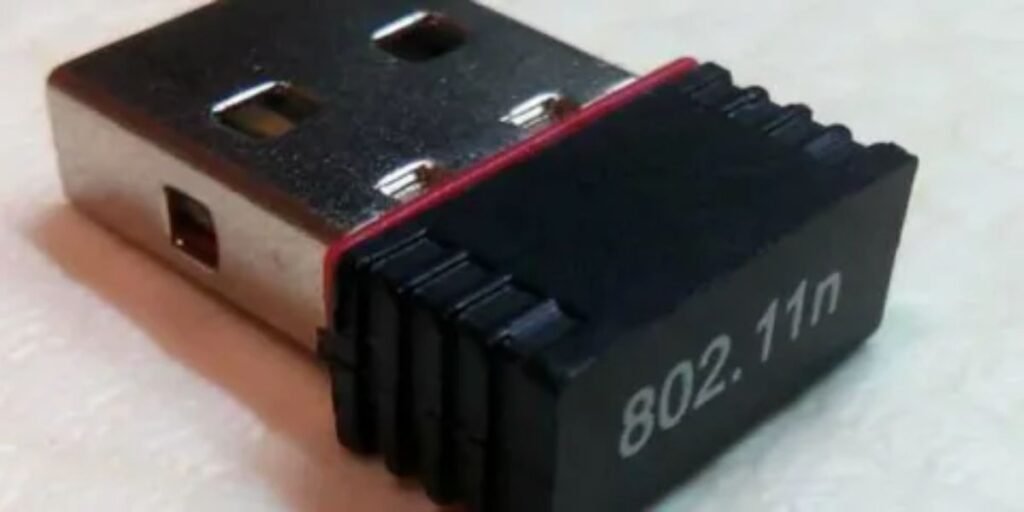
When setting up an older desktop or a compact workshop machine, getting a stable internet connection without running long Ethernet cords can be challenging. Many budget-conscious users purchase inexpensive USB wireless dongles only to discover that operating systems identify the hardware by its internal Realtek RTL8188EU chipset instead of the commercial brand printed on the packaging.
Understanding how this widely used 1T1R controller operates simplifies driver configuration, performance optimization, and troubleshooting on crowded wireless bands.
Realtek RTL8188EU Wireless LAN 802.11n USB 2.0 Network Adapter Specifications and Pricing
Evaluating practical hardware specifications requires examining how internal components process live network traffic rather than relying solely on generic marketing data. Built around the Realtek RTL8188EUS single-chip integration, the hardware combines a Media Access Control layer, a baseband processor, and a radio-frequency module into a compact package.
The physical specifications and market positioning are outlined below:
| Feature / Parameter | Technical Specification Detail |
| Chipset Core | Realtek RTL8188EUS single-chip controller |
| Wireless Protocols | IEEE 802.11b, 802.11g, and 802.11n |
| Frequency Support | Strictly single-band 2.4 GHz spectrum |
| Bus Interface | USB 2.0 interface (creates a physical bandwidth bottleneck) |
| Maximum Link Rate | Up to 150 Mbps theoretical link speed |
| Real-World Throughput | 30 Mbps to 50 Mbps under optimal line-of-sight conditions |
| Security Standards | WEP, WPA, WPA2, and WPA3-Personal |
| Antenna Layout | 1T1R (1 Transmitter, 1 Receiver) internal trace or dipole |
| Retail Price Range | $5 to $12 USD |
| Common OEM Brands | TP-Link, EDIMAX, ASUS, D-Link, and Mercusys |
What the Realtek RTL8188EU Adapter Is and What It Can Actually Do
The fundamental distinction between the RTL8188EU silicon and the retail brand on the packaging explains why different adapters share identical driver packages. Manufacturers purchase raw chipsets from Realtek and mount them onto customized printed circuit boards with unique USB vendor and product IDs, yet the underlying communication logic remains identical.
This architecture became ubiquitous because its low power consumption, minimal thermal output, and ultra-low manufacturing costs make it an ideal drop-in wireless solution for embedded systems, digital signage players, and budget desktop builds.
Real-world wireless performance reflects its single-stream design, providing stable connections for basic web research, text-based cloud apps, and standard-definition video playback. Coverage expectations should remain modest because the compact internal antenna lacks the gain needed to penetrate multiple interior walls or heavy concrete masonry.
Hardware limitations stem directly from its single-band 2.4 GHz restriction, making it highly susceptible to interference from Bluetooth devices, microwave ovens, and overlapping neighbor routers. This adapter suits budget-conscious users, retro hardware restorers, and hobbyists running Raspberry Pi projects where high-speed file transfers are secondary to maintaining a reliable, low-cost connection.
Installing the Correct Driver and Getting the Adapter Ready
Successful wireless deployment relies entirely on deploying stable drivers that match the specific operating system kernel version. When you plug the adapter into an available USB port, you should verify its hardware signature by opening Device Manager on Windows or running lsusb in a terminal window on Linux to confirm it matches USB\VID_0BDA&PID_8179.
For Windows environments, modern builds often pull certified drivers automatically via Windows Update, but manual execution of official installation packages ensures access to advanced adapter properties.
To install the driver manually on Windows systems, follow these sequential steps:
- Download the official ZIP driver package from a trusted vendor archive or the manufacturer support portal.
- Extract the compressed archive contents to a temporary folder on your local desktop.
- Open the Windows Device Manager, locate your unrecognized USB wireless device under Network adapters or Unknown devices, and right-click to select Update driver.
- Choose the Browse my computer for drivers option and navigate directly to the extracted folder directory.
- Click Next to let Windows finish installing the digitally signed driver package.
For Linux distributions, because mainline kernel support for early revisions can occasionally cause instability or missing monitor mode features, compiling community-maintained drivers via DKMS ensures robust performance across modern distros.
To compile and deploy the driver on Debian-based or Ubuntu environments, execute the following steps in your terminal:
- Update your local system repositories and install the required build dependencies using sudo apt update && sudo apt install build-essential git dkms.
- Clone the community repository by running git clone https://github.com/ivanovborislav/rtl8188eu.git and navigate into the source directory.
- Compile and install the kernel module by executing make followed by sudo make install.
- Blacklist conflicting native kernel modules by running echo “blacklist r8188eu” | sudo tee -a /etc/modprobe.d/realtek.conf.
- Restart your computer to initialize the newly compiled driver module successfully.
Best Settings to Fix Slow Speeds, Weak Signals, and Connection Problems
Optimizing an entry-level single-stream adapter requires fine-tuning local system configurations and radio environments. Fine-tuning these parameters helps eliminate packet drops and latency spikes.
- Device Manager Power Management: Disable the Allow the computer to turn off this device to save power toggle under power management to prevent Windows from putting the USB dongle into a sleep state during active data streams.
- USB Selective Suspend: Turn off USB selective suspend settings in your power plan to maintain continuous electrical current to the wireless chip.
- Preferred Wireless Mode: Force the adapter properties to prioritize 802.11n mode instead of mixed legacy b/g/n modes to cut down management frame overhead on the airwaves.
- Channel Width Tuning: Lock the channel width to 20 MHz in congested urban environments to minimize packet loss, or select auto-width options only when operating in isolated rural settings.
- Router Channel Selection: Configure your wireless router to broadcast on non-overlapping 2.4 GHz channels 1, 6, or 11, avoiding auto-switching modes that cause sudden latency spikes.
- USB 2.0 Port Placement: Plug the adapter into a rear motherboard USB port instead of front-panel chassis leads to eliminate signal degradation from unshielded internal wiring harnesses.
- Interference Isolation: Keep Bluetooth dongles, wireless mice receivers, and USB 3.0 external hard drives physically separated from the adapter, as USB 3.0 radiation heavily degrades nearby 2.4 GHz reception.
Is the RTL8188EU Still Worth Buying?
Assessing the long-term viability of this hardware requires weighing its functional strengths against the speed demands of modern software ecosystems. It still performs reliably for basic productivity tasks like office document editing, web browsing, standard-definition video streaming, and virtual meeting attendance.
However, it falls short when handling heavy local file transfers, competitive online gaming, or multi-device households streaming 4K content simultaneously. Updating software drivers can optimize packet handling and stability, but it cannot bypass core hardware limitations or add missing dual-band capabilities. For users operating on tight budgets or reviving older legacy machines, the adapter remains a functional, low-cost lifeline.
Better Alternatives If You Need Faster or Dual-Band Wi-Fi
When network demands outgrow the limits of single-band 2.4 GHz hardware, upgrading to modern connectivity standards yields immediate performance gains. Transitioning to adapters supporting both 2.4 GHz and 5 GHz bands bypasses local airwave congestion and unlocks significantly higher data rates. Upgrading to Wi-Fi 5 or Wi-Fi 6 technology drastically improves latency, multi-user efficiency, and throughput consistency.
- TP-Link Archer TX20U Plus: A great overall Wi-Fi 6 desktop upgrade featuring adjustable high-gain dual-band antennas and a dedicated USB 3.0 interface.
- TP-Link Archer T3U Plus: An affordable and reliable dual-band Wi-Fi 5 option for budget-conscious shoppers looking for steady performance.
- TP-Link Archer TXE70UH: A high-gain tri-band solution bringing Wi-Fi 6E capabilities to setups located far from the router, effectively tackling distance, walls, and severe airwave congestion.
Abandon troubleshooting routines and invest in a modern dual-band adapter if your internet subscription exceeds 50 Mbps.
Where to Buy the Realtek RTL8188EU Adapter
Sourcing reliable hardware requires navigating online marketplaces filled with unbranded listings and generic packaging clones. You can purchase these adapters safely through major global e-commerce platforms and electronics suppliers such as Amazon, eBay, and specialized tech hardware distributors.
Because identical internal silicon appears under dozens of different consumer brand names, verifying specifications and checking hardware IDs is essential before making a purchase. Be cautious of ultra-cheap listings claiming inflated speeds like 600 Mbps or 1200 Mbps on a single-antenna 2.4 GHz form factor, as these frequently misrepresent older or inferior chipsets. Always check seller return policies, operating system compatibility notes, and whether local driver installation media or digital download links are provided by the vendor.
Frequently Asked Questions
Does the RTL8188EU support Windows 11?
Yes, modern Windows 11 builds automatically detect and deploy compatible driver versions through Windows Update, though manual driver installation from Realtek archives ensures access to advanced power management properties.
Does it work with Linux?
Yes, support exists across major Linux distributions through in-kernel modules or community-compiled DKMS packages, making it a popular choice for custom penetration testing rigs and lightweight server builds.
Why can’t it detect my 5 GHz Wi-Fi network?
The adapter features a single-band 2.4 GHz radio transceiver by design, meaning its physical circuitry cannot receive or process 5 GHz or 6 GHz network frequencies.
Is 150 Mbps the maximum internet speed?
No, 150 Mbps represents the maximum theoretical physical layer link rate; real-world internet throughput typically caps out between 30 Mbps to 50 Mbps due to wireless protocol overhead and signal attenuation.
Can I use this adapter for gaming?
It handles casual web-based games, but online multiplayer gaming requiring low latency is not recommended due to susceptibility to interference and packet jitter on the 2.4 GHz band.
How do I identify whether my USB adapter uses the RTL8188EU chipset?
Plug the adapter into a Windows PC, open Device Manager, navigate to network adapters, view device properties, and check the Details tab for the hardware ID string USB\VID_0BDA&PID_8179.
Should I update the driver if everything is already working?
If your wireless connection remains stable and maintains expected throughput speeds, updating the driver offers little practical benefit, as stable configurations are best left untouched.