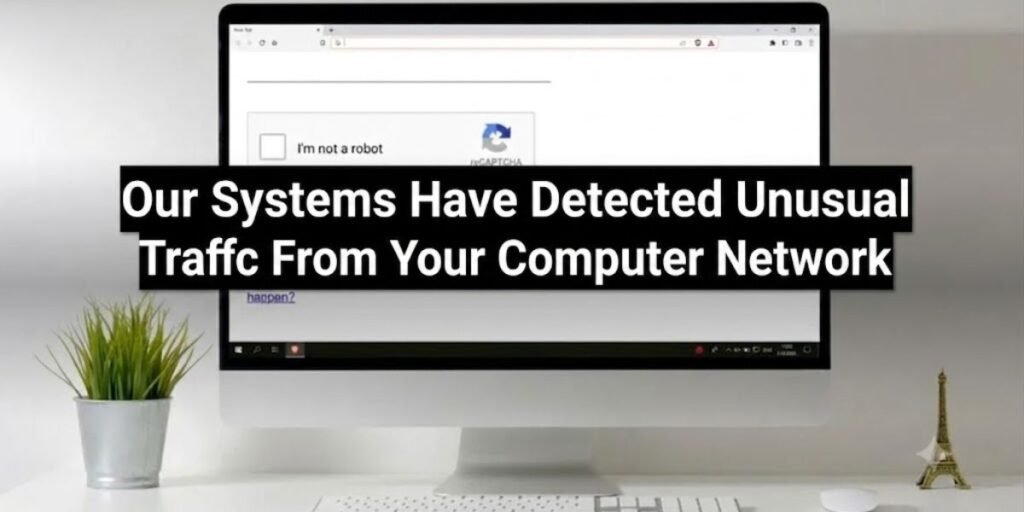
You open your browser, type a search query, and instead of results, a stark page blocks your path. The screen claims that our systems have detected unusual traffic from your computer network.
Seeing this message can be alarming, and your first thought might be that someone compromised your device or stole your data. Fortunately, the warning does not automatically mean a hacker has broken into your computer. In the vast majority of cases, Google is simply reacting to an automated pattern of data requests originating from your current internet address.
The block acts as a digital shield, protecting Google’s servers from being overwhelmed by non-human traffic.
While the situation is usually harmless, repeated warnings shouldn’t be ignored. Frequent blocks can sometimes point to a hidden piece of malware, a poorly coded browser extension, conflicts with a virtual private network, or heavy activity from other users sharing your internet connection.
What This Google Warning Is Actually Telling You
Google monitors the speed and volume of search requests arriving at its servers. When a single network location sends searches at a speed that a human cannot replicate, the system flags the activity.
The full message reads: “Our systems have detected unusual traffic from your computer network. This page checks to see if it’s really you sending the requests, and not a robot.” Below it, Google prints the exact public IP address it flagged plus a UTC timestamp. Note both down, because they are the only evidence your IT team or internet provider can act on later.
Check the address bar too. A legitimate block always sits on google.com/sorry/index, usually with a long “continue” parameter pointing back to your original page. Google documents the behaviour in its own support article, number 86640.
Automated requests look entirely different from human searches. A person types, reads results, clicks a link, and pauses. A script or automated tool sends dozens of queries every second without a break.
When the volume crosses a specific threshold, Google temporarily blocks the searches. This action prevents automated systems from slowing down the search engine for everyone else.
A harsher variant also exists: “This network is blocked due to unaddressed abuse complaints about malicious behavior.” That signals a standing reputation problem with the whole network rather than a brief speed spike, and it rarely clears on its own.
The appearance of a reCAPTCHA screen is your way out. It is a simple test designed to tell humans and automated scripts apart.
Solving the puzzle proves you are a person rather than a machine. Once you pass, Google generally restores your access immediately because the block itself is designed to be temporary.
The Most Likely Reasons You Are Seeing This Message
Using a VPN or Proxy Service
Virtual private networks route your internet traffic through a middleman server. Because thousands of subscribers connect to the same server, they all share a single external internet address.
When hundreds of people use the same address to search Google simultaneously, it triggers the automated traffic alarm. Google names this cause directly in its support documentation, advising affected users to uninstall the VPN or contact the provider, and extends the same warning to IPv6 tunnel services. Its reasoning is blunt: some of these services make it impossible to tell abusive traffic from legitimate traffic, so the whole address gets blocked.
Too Many Searches From the Same IP Address
Similar to a virtual private network, local physical networks often mask many devices under one public internet address.
- Corporate offices where hundreds of employees research topics simultaneously.
- Schools and universities filled with students querying data at the exact same time.
- Public Wi-Fi networks at airports or transit stations where hundreds of travelers connect.
- Shared internet connections in apartment complexes or residential buildings.
One cause most guides skip is Carrier-Grade NAT. With IPv4 exhausted, providers now put many customers behind a single shared public address, using the 100.64.0.0/10 range reserved in RFC 6598. Cloudflare flagged the side effect in October 2025: security systems assume one address equals one user, and that breaks once subscribers share an IP. Mobile carriers use it almost universally, so switching to mobile data does not always help. If your router’s WAN address starts with 100.64, the flagged traffic may not be yours.
Browser Extensions Making Background Requests
Certain tools installed in your browser operate silently behind the scenes. They fetch data even when you are not actively looking at them.
- SEO extensions that pull keyword metrics and ranking data automatically.
- Scraping tools used by web researchers to pull text from search pages.
- Automation plugins designed to refresh pages or track inventory changes.
- Shopping assistants that compare prices across dozens of retail sites in real time.
Search Automation or Bot Software
If you run software specifically built to query the web, Google will detect it almost instantly.
- Scraping tools built to harvest search engine result pages.
- Rank trackers used by digital marketers to check website positions daily.
- Automated scripts written in languages like Python to gather online data.
Sending automated queries to Google without permission has always violated its terms of service. The sanctioned alternative, the Custom Search JSON API, allowed only 100 free queries a day and is now closed to new customers, shutting down January 1, 2027.
Malware Generating Hidden Traffic
Malicious software can secretly hijack your computer network capabilities. Once inside, the software turns your machine into a node that sends silent background requests.
This traffic occurs entirely without your knowledge. You only realize something is wrong when Google blocks your legitimate manual searches.
Internet Service Provider IP Reputation
Internet service providers assign public addresses to their customers dynamically. This means your home router might receive a fresh address every time it restarts.
If the previous person who used your current address ran automated bots or spam tools, the address carries a bad reputation. Google remembers the bad behavior and forces the warning onto your clean device. Free lookups such as AbuseIPDB or Spamhaus show in seconds whether your address already carries abuse reports.
Start Here Before Trying Anything Else
Before diving into complex settings, use this diagnostic checklist to narrow down the source of the problem.
- Does the block page sit on google.com/sorry, and did you note the IP and timestamp on it?
- Are you currently running an active VPN or proxy service?
- Does the traffic warning appear on every single browser installed on your computer?
- Does the block happen when you connect your device to a different network?
- Does your smartphone work normally when you switch over to mobile data?
- Are other people in your house or office using the same Wi-Fi network right now?
Fixes That Resolve the Problem Most Often
Complete Google CAPTCHA
The fastest way past the screen is to simply play along with the security check.
Click the checkbox and select the requested images. Successfully finishing the puzzle signals the automated system that a human is in control, clearing the block for your current session.
One warning belongs here. A real Google check only asks you to click and identify images. It never tells you to press Windows + R, open PowerShell, or paste a command to “verify” anything. That is a ClickFix attack: a fake verification page silently copies a malicious command to your clipboard and persuades you to run it yourself. Microsoft’s 2025 Digital Defense Report named it the leading initial access method that year, at roughly 47% of intrusions, and ESET measured a 517% rise in the first half of 2025. If a page gives you anything to type, close the tab.
Turn Off Your VPN Temporarily
If you use a privacy service, pause the connection to see if the block vanishes.
Disconnecting strips away the shared public address. Your browser will then connect directly through your home internet provider, showing Google your actual, unshared network location.
Restart Your Router
Power down your internet router, wait roughly one minute, and plug it back in.
This physical reset forces your internet service provider to assign a fresh public address to your home. The new address strips away any negative reputation tied to the old one.
In practice, a sixty-second reboot often returns the same address, because DHCP leases are tied to your router’s hardware address and simply get renewed. Leaving the unit unplugged for ten to fifteen minutes lets the lease expire. Check your public IP before and after: if it never changes, you are on a static allocation or behind Carrier-Grade NAT, and rebooting will not help.
Clear Browser Cache and Cookies
Stored web data can sometimes lock a browser into an error loop.
Open your browser privacy settings and clear the cached files and cookies. This wipes away old session tokens that might keep triggering the security page.
Disable Recently Installed Browser Extensions
Turn off your add-ons one by one to find the hidden culprit.
Navigate to your extension management menu and toggle off your tools, focusing first on shopping, development, or data scraping plugins. Test Google after each turn-off to pinpoint the broken extension.
Run a Malware Scan
Rule out malicious background activity by checking your system health.
On Windows, open Windows Security and run a full scan rather than the default quick scan, which skips most of the file system. macOS works differently from what many guides claim: XProtect runs silently and has no scan button, so Mac owners need a reputable on-demand scanner.
Try Another Browser or Device
Isolate whether the glitch is systemic or isolated to one app.
If Google works perfectly on a secondary browser like Firefox or Edge, the issue lives inside your primary browser settings. If it happens on all browsers, the issue is network-wide.
Switch Networks
Test your hardware against an entirely different internet source.
Turn off your device Wi-Fi and activate a mobile hotspot using your smartphone data plan. If the warning disappears, your primary Wi-Fi network is the sole source of the suspicious traffic flag.
When the Warning Points to a Bigger Problem
While an occasional check is normal, certain signs indicate a deeper security vulnerability or structural issue.
Pay close attention if you face constant security requests that reappear every few minutes despite successful solving. Watch for unusual browser behavior, such as search bars changing their default search provider automatically or unknown extensions installing themselves without your permission.
Unexpected redirects to unfamiliar promotional websites or unusually high network activity when your computer sits idle are also red flags. If repeated warnings hit multiple, completely different devices inside your home at the exact same moment, the issue likely stems from a compromised router or a deeply corrupted network node.
A verification page that asks you to run a command is an active security incident. If you already followed such instructions, disconnect that machine and have it examined before logging in anywhere else.
Why It Happens More Often on Shared Networks
Shared environments face this issue constantly because they compress large groups of people into a single public network space.
- Universities where thousands of students research topics simultaneously.
- Hotels accommodating hundreds of guests surfing the web from their rooms.
- Coworking spaces filled with developers, researchers, and digital marketers.
- Corporate offices running automated data analytics tools alongside normal employee browsing.
- Coffee shops hosting dozens of casual web surfers on an open router.
A shared address means you are judged by the actions of strangers. If one person in a hotel runs a rogue data scraper, Google protects its system by throttling the entire shared address, penalizing every guest on the premises.
If You Are Seeing the Warning Repeatedly Every Day
Persistent daily blocks require an inspection of your network backbone. Start by logging into your router admin panel to check for firmware updates. Outdated router software can contain vulnerabilities that allow outside actors to hijack your bandwidth for botnet attacks.
Review your domain name system settings next. Changing DNS does not change the address Google sees, so it is not a fix on its own, but it rules out DNS hijacking by malware. Switch to a verified public option like Google DNS (8.8.8.8) or Cloudflare (1.1.1.1), and check the connected device list for anything you do not recognize.
If the issue persists across all home hardware, an infected device on the network might be quietly blasting out automated pings. Disconnect your smart televisions, gaming consoles, and secondary computers one by one to see when the traffic halts.
Finally, contact your internet service provider. Give them the exact IP address and UTC timestamp printed on the block page, explain that the address is stuck in a Google block loop, and request a clean static address or a refreshed allocation. Without those details, most support desks cannot escalate.
How to Keep It From Coming Back
- Avoid using search automation tools or automated ranking checkers on your personal home network.
- Review your active browser extensions every month and delete anything you no longer use.
- Keep your web browsers updated to the newest versions to maintain modern security protocols.
- Avoid connecting to unknown or low-quality virtual private network servers that pack too many users together.
- Scan your devices periodically with trusted security tools to catch silent background trackers early.
- Secure your home Wi-Fi network with a strong password to prevent unauthorized neighbors from hijacking your bandwidth.
- Update your router system firmware whenever the manufacturer releases a stability patch.
- Never paste a command into Run, PowerShell, or Terminal because a web page told you to.
Questions People Usually Have
Does this message mean my computer has been hacked?
No, the message is primarily a warning about network traffic volume rather than a confirmation of a security breach. It simply means your current internet address is sending requests too quickly.
Can Google block my IP address permanently?
Google rarely issues permanent blocks for casual browsing networks. The restrictions are dynamic and automated, meaning they usually dissolve automatically within a few hours once the heavy traffic stops. The exception is the “unaddressed abuse complaints” variant, which persists until the network operator resolves it.
Can a VPN trigger this warning?
Yes, virtual private networks are a leading cause of this error. Because many subscribers share the same server address, Google flags the combined high volume as an automated botnet. Google’s help documentation applies the same caution to IPv6 tunnel services.
Why does it only happen in one browser?
This typically points to a specific issue inside that application. A rogue extension, a corrupted cookie cache, or a faulty browser profile is likely generating hidden background traffic.
Why do I keep solving CAPTCHA over and over?
If the puzzle repeats endlessly, Google is still receiving suspicious background requests from your network. The underlying cause, like malware or an automation script, remains active.