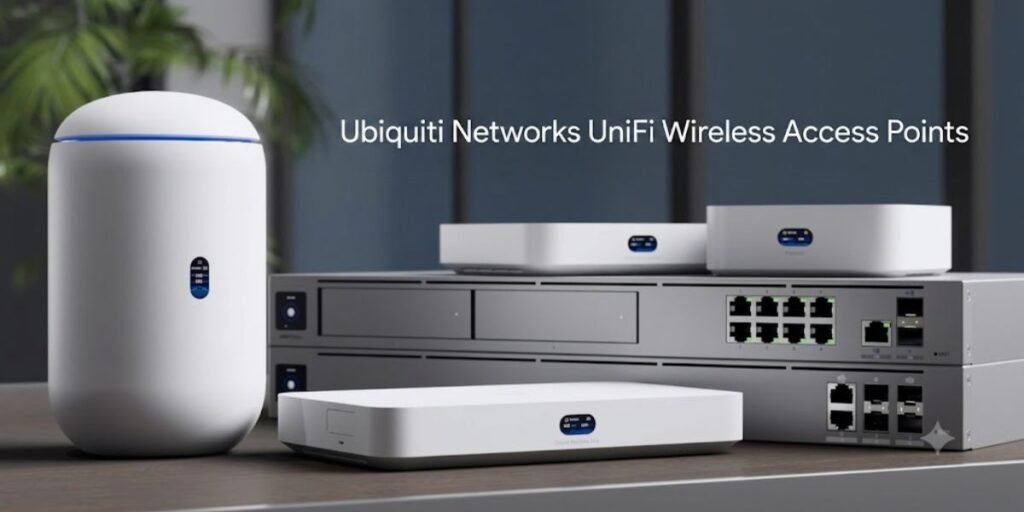
UniFi started life as a cheap alternative to Cisco and Aruba for small offices. It is now a full networking stack deployed in hospitals, stadiums, hotel chains, and campuses, and the design discipline required to run it well has caught up with that ambition. The move from 802.11ac to 802.11ax and 802.11be changed the failure mode of a typical deployment. With 5 GHz-only Wave 2 hardware, most problems were coverage problems. With WiFi 6E and WiFi 7 hardware, most problems are now uplink, PoE, and channel-planning problems, and they show up as slow speeds on a network where the signal bars are full.
The hardware is the least interesting variable. A U7 Pro on a 1 GbE switch port fed by Cat5e is a 1 Gbps access point with a WiFi 7 sticker on it. A U6+ mounted correctly on a ceiling, on a 40 MHz channel, with transmit power turned down and two SSIDs instead of six, will outperform it in a real office. What follows is the design logic behind that difference: spectrum, radio families, RF planning, and the wired infrastructure that decides how much of the wireless capacity you actually get to use.
Understanding the UniFi Wireless Ecosystem
UniFi access points are effectively radios with no independent brain. Configuration, VLAN mapping, channel and power assignment, roaming policy, and firmware all live in the UniFi Network Application, and the AP adopts that state after provisioning. This is why an unadopted UniFi AP is useless out of the box and why the controller decision comes before the AP decision.
The controller runs in three places. Cloud Gateways such as the UCG-Ultra, UCG-Max, UCG-Fiber, and the rack-mount UDM Pro Max and UDM SE run it on the gateway itself, which is now the default for almost every new deployment because routing, IDS/IPS, and network management collapse into one device. A UniFi Cloud Key Gen2 Plus runs the controller alongside a small NVR when the routing layer is third-party. And UniFi Network Server still installs on Debian or Ubuntu, or in Docker, which is what large multi-site operators use when they want the controller in a hypervisor rather than on a shelf.
Device counts matter when choosing. A UCG-Ultra is comfortable in the low tens of devices; a UDM Pro Max or a virtualized controller is what you want above roughly 50 devices or when you are running several hundred concurrent clients with deep DPI enabled. Site Magic and multi-site management let one console hold configuration for dozens of locations, which is the practical reason MSPs standardize on UniFi in the first place.
The other half of the ecosystem is the PoE switching layer, and it is not optional. When a UniFi AP is connected to a UniFi switch, the controller shows the negotiated PoE class, per-port power draw against the switch budget, and link speed, and it can power-cycle a hung AP over PoE without anyone driving to site. That single diagnostic, seeing that an AP negotiated 802.3af when it wanted 802.3at, resolves a large share of the WiFi keeps dropping tickets.
WiFi 6, WiFi 6E, and WiFi 7 Across the UniFi Product Line
WiFi 6 (802.11ax) was an efficiency release, not a speed release. OFDMA splits a channel into resource units so a single transmission can serve several small clients at once, target wake time cuts battery drain and airtime waste from IoT devices, and 1024-QAM adds throughput only when SNR is high, roughly 35 dB or better, meaning within about 10 to 15 metres of the AP in clean air. In a room with 60 phones running Teams, the win over 802.11ac comes almost entirely from OFDMA and BSS coloring, not from the headline PHY rate.
WiFi 6E is the same PHY moved into new spectrum. In the United States and Canada, 5.925 to 7.125 GHz gives 1,200 MHz, fifty-nine 20 MHz channels, or seven clean 160 MHz channels with no DFS and no legacy 802.11b/g/n clients to slow the medium down. The UK, EU, and several other regulators opened only the lower 500 MHz (5.945 to 6.425 GHz), which is three 160 MHz channels, and restricted indoor use to Low Power Indoor rules at 23 to 24 dBm EIRP. Availability outside those regions is inconsistent. Set the country code correctly in the controller and confirm the band actually appears before you buy 6E or WiFi 7 hardware for its 6 GHz radio.
Two constraints catch people out on 6 GHz. First, security is mandatory: WPA3-SAE with Protected Management Frames only. A WPA2 SSID cannot be extended to 6 GHz, and any client that cannot do SAE will never join it. Second, 6 GHz has roughly 1.6 dB more free-space path loss than 5 GHz and attenuates harder through walls, so a 6 GHz cell is meaningfully smaller than the 5 GHz cell from the same AP. Treat it as a capacity band for the room the AP is in, not a coverage band.
WiFi 7 (802.11be) adds 4096-QAM, 320 MHz channels, Multi-RU allocation, and Multi-Link Operation. Be realistic about each. 4096-QAM needs SNR in the region of 40 dB and appears at short range only. 320 MHz consumes a quarter of the entire US 6 GHz allocation per AP and is unusable in any multi-AP deployment. In practice, you run 160 MHz, or even 80 MHz on 6 GHz in dense sites. MLO is the feature that actually matters, but most shipping clients implement eMLSR, listening on two bands and switching between them per-frame rather than aggregating both. The benefit is lower latency and far better resilience when one band gets noisy, not doubled throughput. That is still the single biggest real-world improvement in the standard, and it is why WiFi 7 is worth buying for voice-heavy and video-heavy environments even when nobody hits the peak rates.
Choosing the Right UniFi Access Point for Your Environment
Model selection follows the building, not the budget. The variables that decide the answer are client count per room, wall construction, ceiling height, whether cabling already exists, and what the switch can deliver in power and link speed.
Consider these environmental factors before hardware selection:
- Construction materials: Approximate one-way attenuation at 5 GHz: drywall 3 to 5 dB, interior wood door 3 to 4 dB, glass 3 to 6 dB, brick 6 to 10 dB, reinforced concrete 12 to 20 dB, Low-E or metallized glass 25 to 40 dB, lift shafts and metal racking effectively opaque. Two concrete walls are a new AP, not a stronger one.
- Client density: Plan on 25 to 30 concurrently active clients per radio for a good experience, not the marketing figure of 300+ associations. Associations are cheap; airtime is not.
- Roaming requirements: Anyone on a wireless handset, Teams, or a barcode scanner while walking needs overlapping cells and controlled transmit power. Static desktops and TVs do not.
- Mounting constraints: No accessible ceiling, no conduit, or a listed building pushes you to In-Wall or Mesh models regardless of what the RF model prefers.
- PoE and uplink available: An 802.3af-only switch rules out most 6E and WiFi 7 models. A 1 GbE-only switch rules out the point of them.
Small flats and home offices are served by U6+, U6 Lite, or a U7 Pro Wall. Larger houses need two or three U6 Pro or U7 Pro units placed centrally rather than one U6 LR fighting through the structure. Offices, schools, and clinics belong on U7 Pro, U7 Pro XG, or E7 hardware with 2.5 GbE or 10 GbE uplinks, because that is where 6 GHz offload and multi-gig backhaul actually pay for themselves.
Understanding the UniFi Access Point Families
- Lite Series: U6 Lite, U6+. 2×2, 802.3af, 1 GbE. Low-density residential and small office.
- Pro Series: U6 Pro, U7 Pro. 4×4 5 GHz, tri-band on U7 Pro, 802.3at, 2.5 GbE on U7 Pro. The default for business.
- Long-Range Series: U6 LR, U7 Pro Max. High-gain antennas for open volume, not for penetration.
- Enterprise Series: U6 Enterprise, U7 Pro XG, E7. 6 GHz radios, 2.5 to 10 GbE uplinks, 802.3at/bt.
- In-Wall Series: U6 IW, U6 Enterprise IW, U7 Pro Wall. Junction-box mount with downstream switch ports and PoE passthrough.
- Mesh Series: U6 Mesh, U7 Outdoor. Pole or wall mount, wireless uplink capable.
- Outdoor Models: U7 Outdoor, UniFi Mesh Pro, and directional builds with the RP-SMA antenna range.
- WiFi 7 Series: U7 Pro, U7 Pro Max, U7 Pro XG, U7 Pro Wall, U7 Outdoor, E7.
UniFi Lite Series
The U6 Lite and U6+ are 2×2:2 dual-band units drawing under 12 W, which means they run on 802.3af from any UniFi Lite or Flex switch and on the bundled injector if there is no PoE switch. The U6+ is the better buy of the two, offering the same power class and price bracket, but higher 5 GHz throughput and a more modern chipset.
The constraint is the radio chain count, not the CPU. A 2×2 AP tops out at two spatial streams, so a 3×3-capable laptop will connect at roughly two-thirds of what a 4×4 AP would give it, and airtime is consumed faster because each frame takes longer. That is invisible with six devices streaming Netflix and obvious with twenty-five people on video calls. The correct use of Lite hardware is quantity over capability: three U6+ units across a flat, each on 20 or 40 MHz at reduced power, beats one U6 Pro in a hallway cupboard every time.
UniFi Pro Series
The U6 Pro is 4×4 on 5 GHz with 802.3at power and a 1 GbE uplink. The U7 Pro replaces it as the volume business AP: tri-band with a 2×2 6 GHz radio, 4×4 on 5 GHz at 160 MHz, and a 2.5 GbE port, drawing around 21 W and therefore requiring PoE+ rather than PoE. That 2.5 GbE port is the reason to choose it, as a single 160 MHz WiFi 6E client can exceed 1 Gbps of real TCP throughput, and a saturated 1 GbE uplink is the most common invisible ceiling in modern deployments.
Pro-class hardware is also where band steering, per-radio minimum RSSI, and per-SSID band restriction become worth configuring. Steering works by withholding probe responses on 2.4 GHz for dual-band-capable clients. It is a nudge, not a rule, and it fails on clients with aggressive band-preference logic of their own. The more reliable technique in an office is to raise the minimum data rate on 2.4 GHz to 12 or 24 Mbps, which shrinks the 2.4 GHz cell and makes 5 GHz the better-scoring option for the client’s own roaming algorithm. Above roughly 25 to 30 simultaneously active clients per AP, add an AP rather than upgrading one. Density is solved with cell count, not with radio grade.
UniFi Long-Range Series
The U6 LR is the most frequently misapplied product in the catalogue. Its high-gain antennas increase receive sensitivity and transmit EIRP, so the AP hears distant clients better and shouts further. The client does not change. A phone transmits at roughly 15 dBm with a small internal antenna, while a U6 LR can transmit at up to 26 dBm depending on regulatory domain. The result is a link that looks strong on the phone’s signal indicator and fails on the uplink, because the AP cannot decode what the phone sends back. Users describe this as full bars, no internet.
Antenna gain also narrows the vertical beam. A high-gain omni radiates as a flatter disc, so an LR unit on a ceiling covers more floor area on its own level and less of the floor below it, the opposite of what people buy it for in a three-storey house. Where LR hardware genuinely wins is large single-volume space with line of sight and few clients: warehouse aisles, sports halls, barns, open-plan mezzanines, large gardens. Everywhere else, more APs at lower power is the correct design, and it is usually the cheaper one once you count the callbacks.
UniFi Enterprise Series
The Enterprise line is defined by two things: a real 6 GHz radio and an uplink fast enough to carry it. The U6 Enterprise brought 6 GHz to UniFi with a 2.5 GbE port on 802.3at. The U7 Pro XG adds a 10 GbE uplink and 802.3bt power. The E7 is the current flagship, tri-band with a 4×4 6 GHz radio, 10 GbE, and PoE++, and it is the model that makes 320 MHz and full MLO practical in a purpose-built site.
The design reason to buy Enterprise hardware is spectral offload. In a 400-seat office, the 5 GHz band is shared with neighbouring tenants, Bluetooth-adjacent noise, and every legacy device in the building. Moving modern laptops and phones onto 6 GHz, where there are no legacy clients, no DFS, and no incumbent WiFi from the floor above, often improves the 5 GHz experience for everything left behind more than it improves the 6 GHz clients themselves. Budget for the switch at the same time. An E7 on 802.3bt at 10 Gb needs a USW-Pro-XG-8-PoE or equivalent, and that switch costs more than the AP. Deployments that skip this step end up with flagship radios negotiating 1 Gb links on 802.3at power with radio chains disabled to stay inside the power budget.
UniFi In-Wall Access Points
In-Wall models mount into a single-gang or EU junction box and replace an existing data outlet. The U6 IW, U6 Enterprise IW, and U7 Pro Wall all add downstream Ethernet ports, typically three, with one supporting PoE passthrough, so a hotel room or dorm gets a desk phone, a TV, and a wired workstation from one drop.
The architectural advantage is that the walls do the RF planning for you. Each room becomes its own low-power cell, co-channel interference is bounded by the building’s own construction, and per-room capacity is guaranteed regardless of what the guest next door is doing. A 200-room hotel with an AP in every room, each at reduced transmit power on 20 or 40 MHz, produces a more predictable result than any ceiling-based corridor design, because corridor APs have to fire through two doors and a bathroom wall to reach the far side of a room. The costs are cable count and power. One drop per room is a large first-fix expense, and the switch stack has to power every one of them, so PoE budget planning is done at design time rather than after the panel is built. Mounting height is also fixed at socket height, roughly 300 to 450 mm from the floor, which is why these units use directional antenna patterns aimed into the room rather than omnis.
UniFi Mesh and Outdoor Access Points
The U6 Mesh, U7 Outdoor, and the outdoor Mesh Pro line are sealed, UV-stable, and built for pole or wall mounting. They operate reliably in temperatures spanning roughly -30 °C to 70 °C. While UniFi rates these devices as IP-sealed for direct outdoor exposure, the connector remains the primary point of failure. Always use an outdoor-rated shielded cable, create a proper drip loop, and install a gland or weatherproof boot while ensuring the cable shield is grounded. Ethernet surge protection at the building entry is not optional for pole-mounted access points. Without it, a nearby lightning strike can travel down the cable run and destroy the connected switch.
Wireless meshing in UniFi uses the same radio for both client service and backhaul. This effectively halves your usable throughput at the first hop and roughly quarters it at the second. It also introduces latency and jitter that voice and video applications will notice immediately. One hop is a valid design decision, two hops are a compromise, and three hops are a fault report waiting to happen. If a location must be fed via mesh, dedicate the 5 GHz band to backhaul where the hardware allows, keep the uplink RSSI above -65 dBm, and manually lock the uplink access point rather than letting it re-select automatically.
For long and narrow coverage areas like a yard, a quay, a car park, or a warehouse aisle, a directional antenna on a Mesh Pro or an equivalent airMAX-style link outperforms an omnidirectional antenna by a wide margin. In these scenarios, the gain is directed where the clients actually are, rather than wasted radiating into the sky.
UniFi WiFi 7 Access Points
The current UniFi WiFi 7 range includes the U7 Pro (2.5 GbE, 802.3at), U7 Pro Max, U7 Pro XG (10 GbE, 802.3bt), U7 Pro Wall, U7 Outdoor, and the E7 flagship. All of these models expose 6 GHz spectrum where the regulatory domain permits, and all support Multi-Link Operation (MLO).
MLO is the feature to design around. On a client implementing eMLSR, the radio maintains links on two bands and selects the best one per transmission. This means a burst of interference on 5 GHz no longer causes a stall, as the frame is simply sent on 6 GHz instead. In measured terms, this results in a dramatic collapse in tail latency—the 95th and 99th percentile figures that determine whether a Teams call stutters. For voice, video, AR headsets, and wireless VR, this resilience matters far more than any peak speed test number.
Be realistic about channel width. 320 MHz is only practical in one specific scenario: a single access point, in a building with no neighbors on 6 GHz, in a country that provides the full 1,200 MHz allocation. In a real-world multi-AP office, you should run 160 MHz on 6 GHz and 40 MHz on 5 GHz for a significantly more stable and performant deployment.
Comparing the UniFi Access Point Families
| Family | Representative Models | Radio Config | Uplink | PoE Class | Best For |
| Lite | U6 Lite, U6+ | 2×2 Dual-band | 1 GbE | 802.3af | Homes, small offices, low density |
| Pro | U6 Pro, U7 Pro | 4×4 5 GHz, tri-band | 1–2.5 GbE | 802.3at | Offices, medium density, VoIP |
| Long-Range | U6 LR, U7 Pro Max | High-gain omni | 1–2.5 GbE | 802.3at | Warehouses, halls, open volume |
| Enterprise | U6 Enterprise, U7 Pro XG, E7 | Tri-band, 4×4 6 GHz | 2.5–10 GbE | 802.3at/bt | Campus, high density, 6 GHz offload |
| In-Wall | U6 IW, U6 Ent IW, U7 Pro Wall | Directional, wall-height | 1–2.5 GbE | 802.3at/bt | Hotels, dorms, apartments |
| Mesh / Outdoor | U6 Mesh, U7 Outdoor | Omni or directional | 1–10 GbE | 802.3af/at | Yards, car parks, uncabled areas |
Planning Wireless Coverage Like a Network Engineer
The primary design target is not signal strength. Instead, it is a predictable ratio of signal to noise across the coverage area, ensuring cells are small enough for seamless roaming and channels are reused far enough apart to prevent co-channel interference.
Site Surveys
Predictive design in software like Ekahau, Hamina, or TamoGraph uses a scaled floor plan, real-world wall material attenuation values, and a client capability profile to determine optimal AP placement before you buy any hardware. A passive survey involves walking the site with a survey adapter to record RSSI, the noise floor, and neighboring BSSIDs. Always do this before designing in an occupied building because your neighbors’ channel choices will constrain your own.
An active survey associates a real client and measures throughput, retry rates, and round-trip latency. This is the only way to identify an asymmetric link. A post-install validation survey confirms the built network matches the model; on any commercial job, this is the deliverable the client actually pays for.
Establish clear design thresholds in your scope of work:
- Primary coverage: -65 dBm or better for high-density and voice environments.
- General data: -67 dBm.
- Signal-to-Noise Ratio (SNR): At least 25 dB everywhere.
- Secondary coverage: -72 dBm or better from a second AP to facilitate smooth roaming.
Note the noise floor during your survey. A typical clean 5 GHz environment sits near -95 dBm. Anything above -85 dBm indicates an interference source you must locate before adding more access points.
Coverage Versus Capacity
Coverage design asks how few APs can cover the building, while capacity design asks how much airtime each user receives. They produce different results, and the latter is the only correct approach for any space occupied by people.
The arithmetic is simple: take your total concurrent device count and divide by 25 to 30 active clients per radio. That gives you an AP count before you even look at the floor plan. A 500-seat lecture hall with a laptop and a phone per person is roughly 1,000 associations and perhaps 400 simultaneously active devices. That requires 12 to 16 APs on narrow channels, likely mounted under seats or behind the stage using directional antennas, rather than four LR units on the ceiling. Once you have the necessary AP count, deliberately shrink each cell using reduced transmit power and narrower channels so those APs can coexist.
Access Point Placement
Mount APs horizontally on the ceiling, with antennas pointing down, at a height of 2.5 to 4 meters. Above 4.5 meters, the AP covers a footprint that is too large to control, and the near-field performance directly underneath degrades. In warehouses with 10-meter ceilings, use directional antennas aimed down the aisles instead of omnidirectional units in the roof.
Avoid placement mistakes that ruin performance, such as mounting inside metal-backed ceiling tiles, above suspended metal ductwork, behind a lift shaft, behind a wall-mounted screen, or inside a comms cabinet. Each of these can cost 10 to 30 dB of usable signal and create a coverage hole that no amount of increased transmit power can fix. Wall-mounting a ceiling AP is also a mistake, as it radiates into the wall behind it and loses roughly half its intended pattern. This might be acceptable for a narrow corridor, but it is incorrect for an open floor plan.
RF Optimization
On 2.4 GHz, use channels 1, 6, and 11 only at 20 MHz width. In very dense installations, consider turning 2.4 GHz radios off entirely on every other AP. Three non-overlapping channels cannot support a dense grid, and every AP you leave broadcasting on 2.4 GHz adds co-channel interference without adding capacity.
On 5 GHz, 40 MHz is the working default. It provides twelve non-overlapping channels in most regions, including DFS, which is sufficient for a robust frequency reuse pattern. Using 80 MHz halves that count, and 160 MHz leaves you with only two. Use DFS channels—the UNII-2A and UNII-2C bands are usually the emptiest spectrum in a city—but understand the cost: 60 seconds of channel availability checking before the AP can serve clients, 10 minutes on weather-radar channels (120–128), and a forced channel move within 10 seconds if radar is detected. If you are near airports, ports, or weather radar, exclude DFS from your plan entirely.
Set transmit power manually. “Auto” and “High” settings leave APs shouting over one another. Use “Medium” or “Low” on 5 GHz, and set 2.4 GHz several dB below 5 GHz so that the two cells have roughly the same effective size. If the 2.4 GHz cell is larger than the 5 GHz cell, clients will stick to the slower band at the edge of the room. Finally, enable BSS coloring on 802.11ax and later radios. It allows an AP to distinguish its own traffic from an overlapping BSS and transmit rather than defer, which recovers a measurable share of airtime in dense grids.
Roaming Optimization
Clients decide when to roam, and the network can only make that decision easy. 802.11k provides the client with a neighbor report so it knows where to look without performing a full scan. 802.11v BSS transition management allows the access point to suggest a better candidate. 802.11r fast transition cuts reassociation time from hundreds of milliseconds to just tens by caching the key hierarchy. This is essential for wireless handsets and mobile Teams calls. Historically, it has been the source of connection failures on older printers and IoT devices, which is why UniFi keeps this setting per-SSID. Enable it on corporate and voice SSIDs, but leave it off for IoT networks.
Design for 15 to 20% cell overlap at the -67 dBm contour. Then, handle sticky clients using minimum RSSI, set between -70 and -75 dBm. Setting it higher at -67 dBm is a common error because it will disconnect clients that are working perfectly well and produce visible drops in the middle of the floor.
SSID Planning
Every SSID transmits beacons ten times a second on every radio of every access point. At a low basic rate, those beacons are long frames. When you have six SSIDs across three radios, a meaningful percentage of airtime is spent on nothing. Raise the minimum basic rate to 12 Mbps, and the same beacon takes a fraction of the time to transmit.
A clean hierarchy looks like this:
- Corporate: Use WPA3 or WPA2/WPA3 transition mode, with 802.1X if a RADIUS server exists, and keep 802.11r and k/v enabled.
- Guest: Place this on a separate VLAN, use guest control with client isolation, enforce bandwidth limits, and utilize a captive portal. Ensure there is no access to any internal subnet.
- IoT: Keep this 2.4 GHz only, use WPA2-PSK, and put it on an isolated VLAN with firewall rules allowing only the specific outbound traffic each device needs. Enable mDNS reflection deliberately rather than opening up the entire VLAN.
- Voice: Only create a dedicated voice SSID if your QoS policy genuinely differs from your standard traffic. Otherwise, fold it into your corporate network.
Three SSIDs is the working ceiling for any network. Four is a decision that requires serious justification.
Building the Right Infrastructure Around Your Access Points
PoE budgeting is critical. Remember that 802.3af delivers 12.95 W at the device, 802.3at delivers 25.5 W, and 802.3bt Type 3 delivers 51 W while Type 4 delivers 71 W. A U6 Lite fits comfortably inside the 802.3af standard, but a U7 Pro at roughly 21 W requires 802.3at, and an E7 requires 802.3bt. Always size your switch for the sum of the device draw plus 20 to 25% headroom. Check the switch’s total power budget rather than just the port count. A USW-Lite-8-PoE offers 52 W across four PoE ports, which is only enough for two modern access points, not four.
Structured cabling matters. Use Cat6A for any multi-gig application. Cat6 carries 10GBASE-T only to 55 meters and is sensitive to alien crosstalk when bundled. Cat5e will carry 2.5GBASE-T to the full 100 meters under NBASE-T, which is a useful escape route in an existing building, but it is not a specification for new work. Always terminate to the same category as the cable itself, and remember that a Cat6A channel with a Cat5e patch lead is only as good as a Cat5e channel.
Match switching capacity to your radios. A tri-band WiFi 7 access point can plausibly move 2 to 3 Gbps in aggregate, so provide it with a 2.5 GbE minimum, and use 10 GbE on flagship models. Then, check the switch’s own uplink to the gateway. Eight access points on 2.5 GbE ports behind a single 1 Gb uplink simply move the bottleneck one hop downstream.
VLAN architecture is essential. Trunk the access point port with the management VLAN untagged and every SSID VLAN tagged. Segmenting IoT devices is as much a performance measure as it is a security one. Chatty multicast and broadcast traffic from smart-home devices is transmitted at the lowest basic rate on every SSID sharing that broadcast domain, consuming valuable airtime for every client in the building.
Managing UniFi Access Points with the UniFi Network Application
Firmware is your highest-leverage control. Set the update policy to manual on production sites, keep a single non-production access point for testing, and stage upgrades across a specific maintenance window rather than accepting automatic prompts. UniFi releases move quickly, and early builds have historically shipped with roaming and DFS regressions. Keep the controller version and access point firmware on compatible release trains, as mismatches are a common cause of provisioning loops.
The RF Environment and Insights views are diagnostic tools worth mastering. The RF Environment view shows channel utilization and interference per radio. Utilization above 50% means the medium is congested regardless of what the client’s signal bar indicates, and this is the single most important metric for distinguishing a coverage problem from a capacity problem. Client Insights exposes retry rates, negotiated PHY rates, and signal strength per client. A client at -55 dBm with a 30% retry rate has an interference problem, not a distance problem.
Traffic Rules and QoS let you protect real-time traffic, while per-client and per-SSID bandwidth limits prevent a guest network from starving your corporate one. On multi-site deployments, configuration templates and Site Magic push consistent VLAN, SSID, and firewall policies to new locations. This is how a branch rollout stays consistent when different installers are handling the cabling at each building.
Features That Matter in Real Deployments
- 802.11r/k/v: Enable these together on all mobility SSIDs. Individually they provide benefits, but together they turn roaming from a noticeable stall into a seamless gap of just a few milliseconds.
- Band steering: Useful but imperfect. Combine this with a raised 2.4 GHz minimum data rate for reliable results.
- Minimum data rate control: Disabling 1, 2, 5.5, and 11 Mbps removes 802.11b compatibility, shortens management frames, and shrinks cell edges. Confirm that no legacy industrial or building-management devices require those rates first.
- Airtime fairness: This stops one distant, slow client from consuming the airtime of a dozen fast ones. It is significant on any network with mixed-generation devices.
- Multicast enhancement: This converts multicast to unicast for AirPlay and Chromecast discovery while blocking the rest. On a network with many Apple devices, this recovers a noticeable amount of airtime.
- Client and BSS isolation: Mandatory on guest and IoT SSIDs. A compromised smart plug on an isolated VLAN cannot enumerate anything else on the network.
- PMF and WPA3: Required for 6 GHz and worth enabling in transition mode elsewhere. It blocks deauthentication-based attacks that WPA2 alone cannot prevent.
Common Deployment Mistakes That Reduce Wireless Performance
- Mounting in metal: Access points placed inside cabinets, above metal ductwork, behind screens, or in metal-backed ceiling voids lose 10 to 30 dB in the directions that matter. This is the most common cause of a coverage hole in an otherwise well-designed site.
- 80 or 160 MHz channels in a multi-AP building: Wider channels raise the noise floor for every neighboring access point and eliminate the channel reuse you need. 40 MHz on 5 GHz is faster in practice for everyone in the building.
- Auto or maximum transmit power: This creates sticky clients, oversized cells, and co-channel interference between your own access points. Lower the power until cells overlap by 15 to 20% and no further.
- Too many SSIDs: Six SSIDs across three bands is a substantial, permanent airtime tax paid by every client on the network.
- 1 GbE uplinks under 6E and WiFi 7 hardware: This is the most expensive mistake you can make, as the hardware appears to be working correctly while delivering only a fraction of its true capability.
- Under-budgeted PoE: Access points that boot and adopt, only to reboot under peak load, are almost always suffering from a switch power budget problem, not a firmware issue.
- Mesh where cable was possible: Every hop costs half the total throughput and adds significant jitter. Cable is always the better answer if it can be pulled.
- Leaving 2.4 GHz on every access point in a dense grid: Three channels cannot support twelve access points. Disable the 2.4 GHz radio on alternating units.
Expanding and Future-Proofing a UniFi Wireless Network
Mixed-generation deployments: The controller manages WiFi 5, 6, 6E, and 7 hardware in one site, and modern clients will naturally prefer the newer radios if power and channel planning are consistent. The trap is uniformity of configuration. An older access point left on “Auto” power beside a new one on “Medium” will pull clients toward the wrong radio. Always re-run channel and power planning after every hardware addition.
Hardware lifecycle: Five years is the realistic replacement interval for high-density enterprise access points, and seven to eight years for low-density residential units. Cabling and switch ports last far longer, which is why pulling Cat6A and specifying multi-gig, 802.3bt-capable switches today is the decision that determines whether your next refresh is a simple swap or a complete rebuild.
Multi-site expansion: Build one reference site, then use it as a template for VLAN IDs, SSID names, firewall policies, RADIUS configurations, and naming conventions. The cost of a non-standard site is usually discovered years later by whoever has to troubleshoot it at 2:00 a.m.
Firmware strategy: Skip day-one releases. Run new firmware on one non-production access point for a week, watch for roaming and DFS regressions, and then stage it across your estate in controlled groups.
Spectrum planning: If 6 GHz is not yet licensed in your regulatory domain, WiFi 7 hardware still delivers MLO benefits across 2.4 and 5 GHz and provides multi-gig uplinks. However, the strongest argument for buying it weakens considerably. Check the current allocation before specifying.
Which UniFi Access Point Should You Choose?
- Apartments and flats: Use the U6+ or U7 Pro Wall. One well-placed unit at reduced power outperforms a high-power model competing with twenty neighboring networks.
- Houses: Two or three U6 Pro or U7 Pro units on wired backhaul. Choose the U7 Pro if your switch can handle 2.5 GbE and 6 GHz is licensed locally.
- Home office with heavy video and file sync: A U7 Pro on a 2.5 GbE port, with the workstation itself connected via wired 2.5 GbE.
- Small business: U7 Pro units throughout, powered by a USW-Pro-Max or Enterprise switch with 802.3at and 2.5 GbE ports.
- Enterprise campus: U7 Pro XG or E7 with 10 GbE uplinks and 802.3bt switching, designed via a predictive survey and validated after installation.
- Hotels and dormitories: U7 Pro Wall or U6 Enterprise IW, one per room, with the total PoE budget calculated across the full stack at the design stage.
- Education and healthcare: E7 or U7 Pro XG with 802.1X and 802.11r/k/v on clinical and staff SSIDs, sized for lecture-hall and waiting-room peak demands.
- Warehouses: U7 Outdoor or Mesh Pro with directional antennas aimed down aisles. Include 2.4 GHz if your scanner fleet is legacy.
Conclusion
The gap between a UniFi network that works perfectly and one that fails is rarely the model on the ceiling. It is whether the uplink can carry the radio, whether the switch can power it, whether the channel plan allows for reuse, whether transmit power is low enough for clients to roam, and whether the SSID count leaves any airtime for actual data. Get those five things right, and even a U6+ will feel fast. Get them wrong, and an E7 will feel broken.
Design from client density and building materials, buy the access point family that fits the physical mounting reality, size the wired layer for the radios you are installing rather than the ones you are replacing, and validate the result with a survey rather than a simple speed test on a phone standing directly under the access point.
Frequently Asked Questions
Should I choose WiFi 6, WiFi 6E, or WiFi 7?
Buy WiFi 7 if your switching infrastructure is multi-gig and 6 GHz is licensed where you are, as MLO alone justifies it for voice and video reliability. WiFi 6 remains correct for low-density residential work and for retrofits where the switch is 1 GbE and will remain that way.
Can different UniFi access point models work together?
Yes, you can mix WiFi 5, 6, 6E, and 7 hardware in one site. Just remember to re-run your channel and transmit power planning after adding new hardware; otherwise, mismatched power settings will steer your clients to the wrong radios.
Do UniFi access points require a controller?
Yes. A UniFi access point holds no independent configuration. It requires the UniFi Network Application on a Cloud Gateway, Cloud Key, or self-hosted server to adopt and provision it. The controller can go offline afterward, and the access points will keep serving clients, but no configuration changes, roaming policy updates, or firmware management are possible without it.
Is WiFi 7 worth the investment today?
On 2.5 GbE or 10 GbE switching, yes—primarily for MLO’s effect on latency and reliability rather than peak speed. On a 1 GbE switch with Cat5e, spend your money on upgrading the wired layer first.
Does every UniFi access point support mesh networking?
Most current models do, but it costs roughly half the throughput per hop and adds jitter. Use it for only one hop where cabling is genuinely impossible, and always lock the uplink access point manually.
What cable should I use for multi-gig UniFi access points?
Cat6A is the standard for all new installations. Cat6 carries 10 Gb only to 55 meters. Cat5e will carry 2.5 Gb to 100 meters if you are working with existing cable, which covers the U7 Pro but not the U7 Pro XG or E7.
Why do my clients show full signal but slow speeds?
There are three usual causes: channel utilization above 50% from co-channel interference, a 1 GbE uplink bottleneck under a multi-gig access point, or an asymmetric link from an over-powered access point that the client cannot answer. Check the RF Environment and the port link speed before touching anything else.